HBA · eGK · NFC
German health cards on your phone: HBA and eGK
CodeB Wallet signs PDFs with the German health professional card (elektronischer Heilberufsausweis, HBA) and the electronic health card (elektronische Gesundheitskarte, eGK) over NFC – straight from your Android phone, without a card reader. The HBA G2.1 creates a qualified electronic signature with its QES certificate; an eGK without a signature certificate signs with its authentication certificate (advanced electronic signature). CodeB Wallet itself is not certified.
- HBA: qualified signature
- eGK: advanced signature
- No card reader
The steps in the app
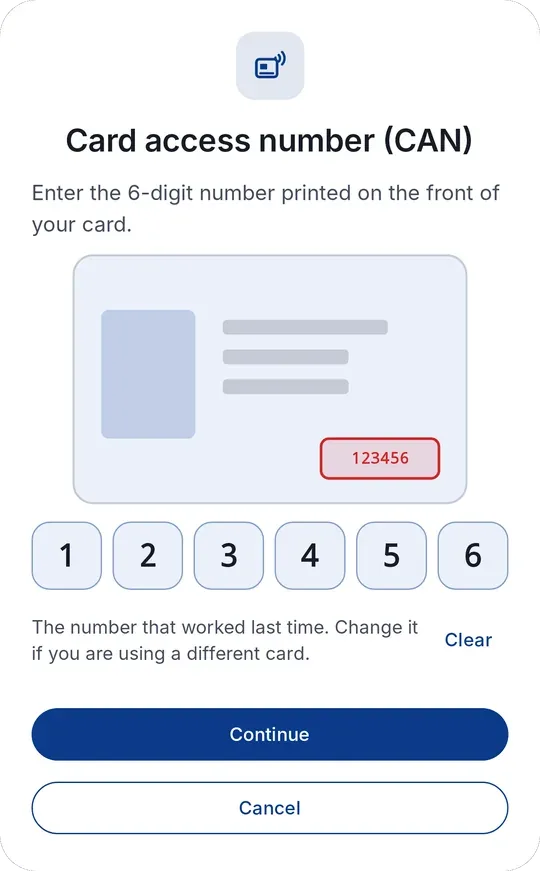
1Enter the card access number (CAN) printed on your card. 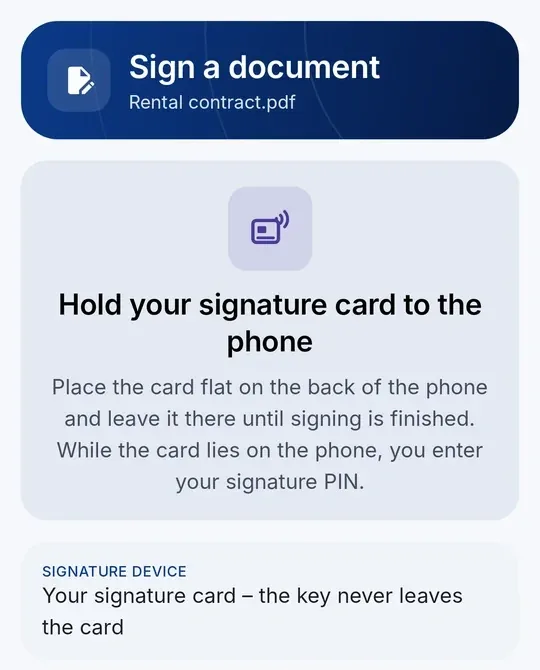
2Hold the card flat against the back of the phone. 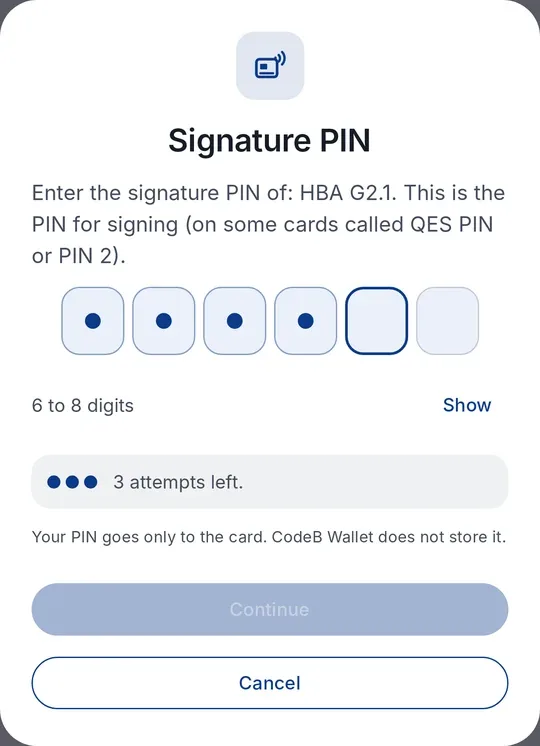
3Enter the PIN the app names – on the HBA the signature PIN (PIN.QES). 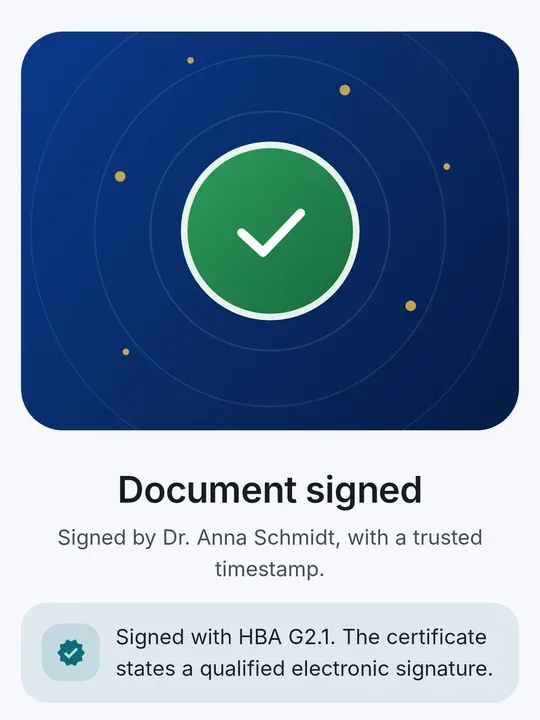
4Done: signed with the HBA, qualified certificate shown.
What you need
A health professional card (HBA) G2.1 or an electronic health card (eGK) G2.1 with NFC, its card access number (CAN) printed on the front, and the PIN the app asks for.
An Android phone with NFC and CodeB Wallet.
Which cards work
Health professional card (HBA) G2.1 – for doctors, dentists, pharmacists, psychotherapists and other health professionals: qualified electronic signature with the card’s QES certificate.
Electronic health card (eGK) G2.1 – the health insurance card. Most cards carry no signature certificate, so CodeB Wallet signs with the card’s authentication certificate. The result is an advanced electronic signature, not a qualified one.
Both need the contactless interface (NFC) and the card access number (CAN) printed on the card. Institution cards (SMC-B) are not used to sign documents.
How to sign a PDF with the HBA or eGK
- On the home screen tap Sign, then Select document and pick a PDF on your phone.
- Check the document, then tap Sign with signature card.
- Enter the 6-digit card access number (CAN) printed on the front of the card.
- Hold the card flat against the back of your phone and leave it there until signing is finished.
- Enter the PIN the app asks for: on the HBA the PIN of the signature application (PIN.QES); on the eGK the PIN of your health card (PIN.CH).
- You see “Document signed”, with the card used and whether its certificate states a qualified electronic signature. Tap Save to phone or Share.
Qualified or advanced signature
With the HBA, the card creates the signature with the key of its QES certificate – the key never leaves the card. CodeB Wallet reads the certificate and shows that it states a qualified electronic signature.
Most eGKs have no signature certificate. CodeB Wallet then uses the card’s authentication certificate: the signature is an advanced electronic signature (AdES) – bound to the card and its PIN, but not qualified. The app never shows it as qualified.
Signatures are embedded in the PDF as PAdES (ETSI EN 319 142), with a trusted timestamp when the timestamp service answers. CodeB Wallet itself is not certified.
Security: your card, your PIN, your document
Phone and card first build an encrypted, authenticated connection with the card access number (PACE). Your PIN reaches the chip only over this connection, and the chip checks it. The app never stores your PIN.
The signing key never leaves the card. A wrong PIN is never retried automatically.
The PDF stays on your phone. Only a fingerprint (hash) of the signature is sent to the CodeB timestamp service for the trusted timestamp. No connector, no TI, no tracking.
Which PIN?
HBA: the PIN of the qualified signature application (PIN.QES). If an HBA has no usable signature certificate, the app signs with its authentication certificate and asks for the card holder PIN (PIN.CH).
eGK: the PIN of your health card (PIN.CH), which you receive from your health insurance.
Change a transport PIN first with your card issuer’s tools. A wrong PIN is never retried automatically, and the app shows the remaining tries.
Tips for a stable connection
Hold the card flat against the back of the phone and keep it still until signing is finished. Remove thick phone cases.
On Android 14 and later the app shows where your phone’s NFC antenna is. If the connection drops, the app continues by itself as soon as the card is back.
Questions about the HBA and eGK
Can I sign PDFs with my Heilberufsausweis (HBA) on an Android phone?
Yes, with an HBA G2.1 with NFC. Enter the card access number (CAN), hold the card to the phone and enter your signature PIN – the card creates a qualified electronic signature.
Can I sign with my electronic health card (eGK)?
Yes, with an eGK G2.1 with NFC. Most health cards carry no signature certificate, so the card signs with its authentication certificate – an advanced electronic signature, not a qualified one. Enter the CAN printed on the card and the PIN of your health card.
Is a signature with the eGK the same as a handwritten signature?
No. In the EU only a qualified electronic signature has the legal effect of a handwritten signature (eIDAS). The eGK signature is an advanced electronic signature: it shows which card signed and that the document was not changed afterwards. For qualified signatures use the HBA or another QES card.
Do I need a card reader, a connector or the telematics infrastructure (TI)?
No. The app talks to the card directly over NFC. The PDF stays on your phone; only a fingerprint (hash) of the signature is sent to the CodeB timestamp service for the trusted timestamp.
Which PIN do I need?
HBA: the signature PIN (PIN.QES). eGK: the PIN of your health card (PIN.CH) from your health insurance. The app shows the remaining tries; a wrong PIN is never retried automatically.
Where do I find the card access number (CAN)?
On the front of the HBA or eGK: a 6-digit number printed on the card. The app asks for it before you hold the card to the phone.
What if my PIN is blocked or I forgot it?
HBA: unblock it with the PUK from your PIN letter or contact the trust service provider that issued your card. eGK: your health insurance helps. CodeB Wallet never retries a wrong PIN automatically and shows the remaining tries.
Install the closed beta (Google Play) Closed beta: open only to invited testers signed in to Google Play with the e-mail address on our tester list. To join the beta, contact us at info@aloaha.com.