
User manual
This guide explains CodeB Wallet step by step, in plain words. You do not need any technical knowledge. The pictures show the real app.
Before you start
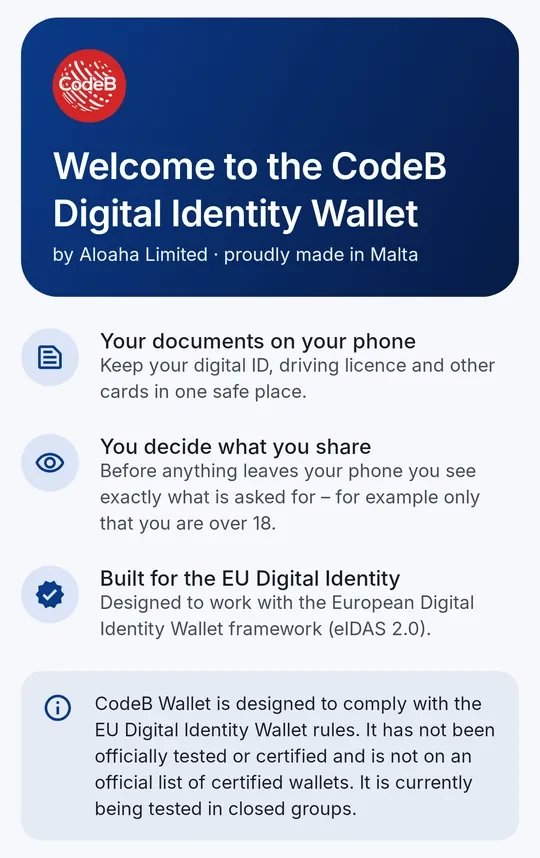
CodeB Wallet is an app for Android phones. It keeps your digital documents – for example your digital ID, your driving licence or a membership card – safely on your phone.
CodeB Wallet is designed to comply with the rules for the EU Digital Identity Wallet. It has not been officially tested or certified.
Set up your wallet
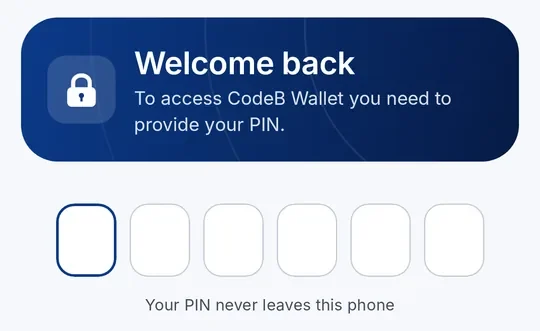
When you open CodeB Wallet for the first time:
New phone? On the first “Add document” screen tap New phone? Restore from a backup.
- Read the welcome screen and tap Continue.
- Choose a 6-digit PIN. Pick numbers that others cannot guess – not your birthday and not 123456.
- Enter the same PIN again to confirm it.
- You see “Your wallet is secured!”. Tap the button to go to your home screen.
Your PIN never leaves your phone. Nobody at Aloaha can see it or reset it for you, so please remember it well.
Your home screen
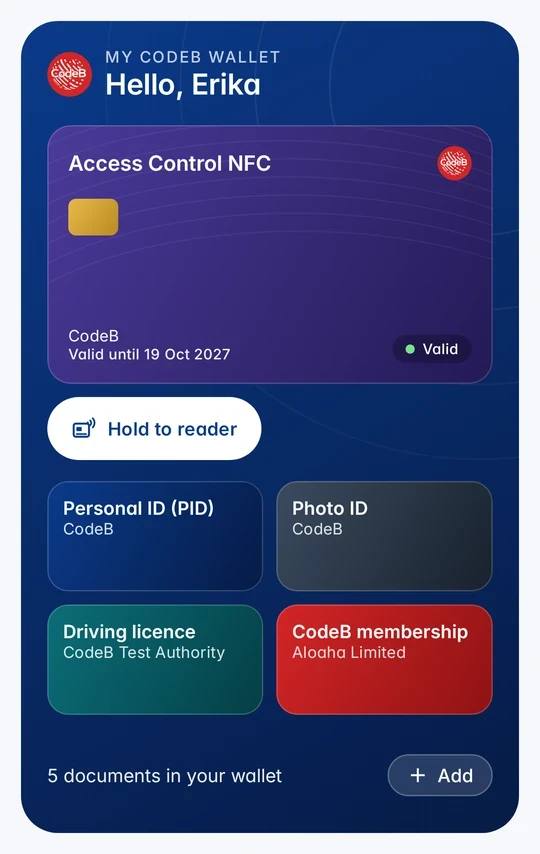
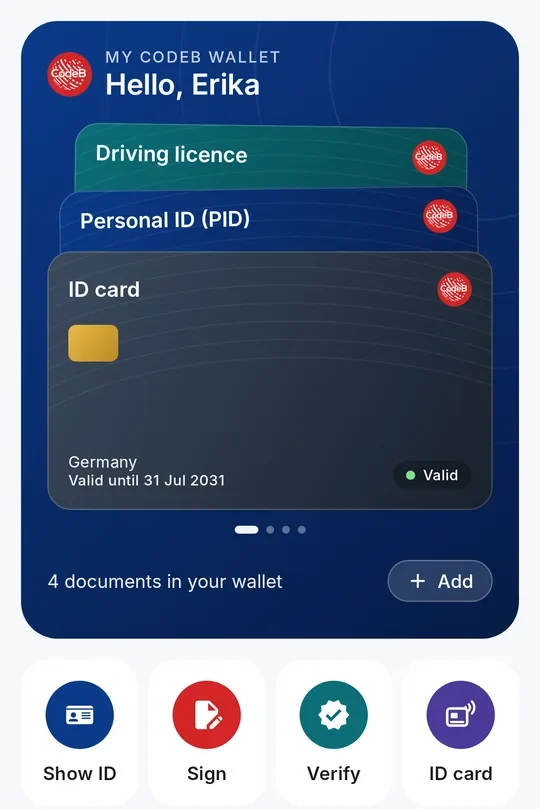
At the top is one card in front – the card you used last, or the one you chose to keep in front. NFC cards (access, PKI and NFC memory cards) have Hold to reader right below: one tap opens the card and makes it ready for the reader. Other cards have Open. Swipe left or right on that card to browse through all your cards.
All your other cards are shown as tiles below. Tap a tile to open the card; hold a tile to keep that card in front. With more than six cards they are grouped into Identity, Access & NFC cards and Memberships & other cards, and View all shows every card with a search field.
Below the cards are four quick actions:
Show ID – prove who you are, in person or online.
Sign – sign a PDF document electronically.
Verify – check another person’s ID.
ID card – read the chip of your passport or ID card.
Under “How it works” every function is explained again. Tap Learn more for details; at the end of each explanation there is a button to start right away.
At the bottom you switch between Home, Documents (all your documents as a list) and History (when you shared what, and with whom). Tip: hold the app icon for shortcuts to Scan QR code, Verify someone and One-time codes.
Pseudonyms: sign in with a passkey
Full guide: Passkeys with pseudonyms – sign in without a password or your name
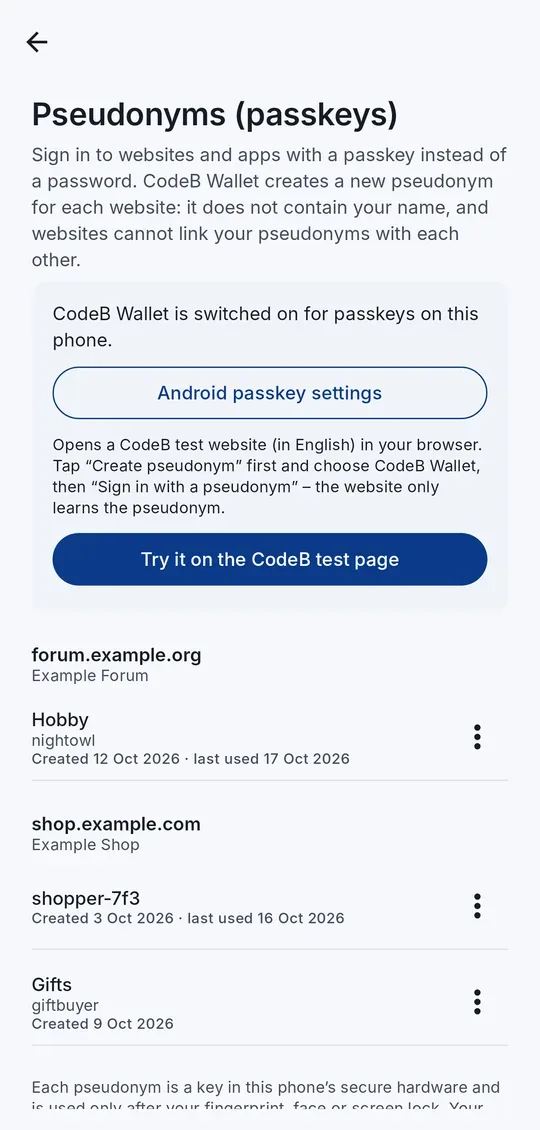
Many websites let you sign in with a passkey instead of a password. CodeB Wallet can be that passkey: it creates a new pseudonym for each website. A pseudonym contains no name, e-mail address or other personal data, and websites cannot link your pseudonyms with each other. Needs Android 14 or newer.
- Open the menu → Pseudonyms (passkeys) and tap Turn on in Android settings. In “Passwords, passkeys and accounts”, switch CodeB Wallet on.
- On a website that offers “Create a passkey” or “Sign in with a passkey”, choose CodeB Wallet.
- Confirm with your fingerprint, face or screen lock. Next time, pick the pseudonym and confirm the same way – no password.
- Want to try it first? Open our test page phone.codeb.io/pseudonym-test.html in Chrome, tap Create pseudonym and choose CodeB Wallet, then Sign in with a pseudonym.
Try it in the app. Once CodeB Wallet is switched on for passkeys, the Pseudonyms screen shows Try it on the CodeB test page: it opens our test website in your browser – tap “Create pseudonym” first, then “Sign in with a pseudonym”.
Manage them in the wallet. Pseudonyms are listed by website. Give one your own name (only you see it – it is never sent to the website) or delete it. Deleting removes the key from your phone; delete the pseudonym on the website as well.
Secure by design. Each pseudonym is a key in your phone’s secure hardware, used only after you confirm. It never leaves the phone and is not copied to a cloud. Creating, using and deleting a pseudonym is recorded in the History.
Apps too. Apps can use a website’s pseudonyms only if that website allows the app (Digital Asset Links); browsers pass the website address they checked.
CodeB Wallet is not offered? “Sign in” only lists pseudonyms you have already created on that website – create one first. If CodeB Wallet is missing even then, check Android 14 or newer, switch it on again in “Passwords, passkeys and accounts” and use an up-to-date Chrome. More on the page Passkeys with pseudonyms.
Pseudonyms follow the W3C WebAuthn standard (passkeys) as the EU Digital Identity Wallet architecture (ARF 3.0, Topic 11) describes. They are not copied to a new phone – create new ones there and remove the old ones on the websites.
Make CodeB Wallet your passkey service
Android decides which app offers passkeys. Switch CodeB Wallet on once – the menu names differ slightly between phones and Android versions:
- In CodeB Wallet, open the menu → Pseudonyms (passkeys) and tap Turn on in Android settings. This opens the right Android page directly. Or open it yourself:
- Pixel and most phones (Android 14 or newer): Settings → Passwords, passkeys & accounts (on some phones “Passwords & accounts”).
- Samsung Galaxy: Settings → General management → Passwords, passkeys and autofill.
- Make it the default: tap Preferred service, choose CodeB Wallet and confirm. Android then offers CodeB Wallet first when a website asks for a passkey. Google Password Manager stays available.
- Or keep Google as default: under Additional services (or “Additional providers”), switch CodeB Wallet on. CodeB Wallet then appears in the list next to Google whenever you create or use a passkey.
- In Chrome: ⋮ → Settings → Autofill services → Autofill using another service. Then close Chrome completely (swipe it away in recent apps) and open it again. Without this, Chrome uses only Google’s own passkeys.
- Back in CodeB Wallet, the Pseudonyms screen says “CodeB Wallet is switched on for passkeys on this phone”.
CodeB Wallet does not fill in passwords. If your phone asks you to choose one service for passwords, passkeys and autofill together, you can keep your password manager as preferred service and switch CodeB Wallet on as an additional service instead.
Chrome shows Google’s “Save passkey” sheet, or “More options” ends with “Either the device has received unexpected request parameters, or the device cannot support this request”? Chrome is still set to Google’s own passkeys and never asks CodeB Wallet. Set Chrome’s Autofill services to Autofill using another service and restart Chrome – Android’s sheet then lists CodeB Wallet.
Add a document
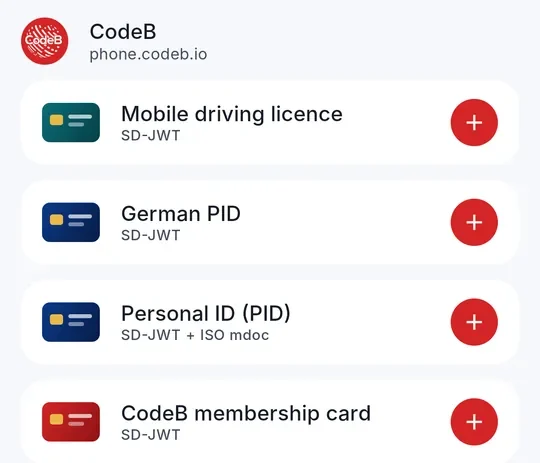
There are two ways to get a document into your wallet.
- Tap Add on the home screen (or the + on the Documents tab).
- Choose the document you want, for example “Personal ID (PID)”, and tap the red +.
- Your phone opens the sign-in page of the issuer (for example phone.codeb.io). Sign in there.
- Check what will be added and confirm with your PIN. The document appears on your home screen.
If an issuer gives you a QR code instead, tap the QR symbol at the top right of “Add document from list” and scan it.
From the CodeB issuer you can currently add the Personal ID (PID), the German PID, the mobile driving licence and the CodeB membership card.
Some documents exist in two formats: “SD-JWT” is used online, “ISO mdoc” is needed to show your ID in person. If you want to do both, add the document in both formats (shown as “SD-JWT + ISO mdoc”).
Show your ID in person
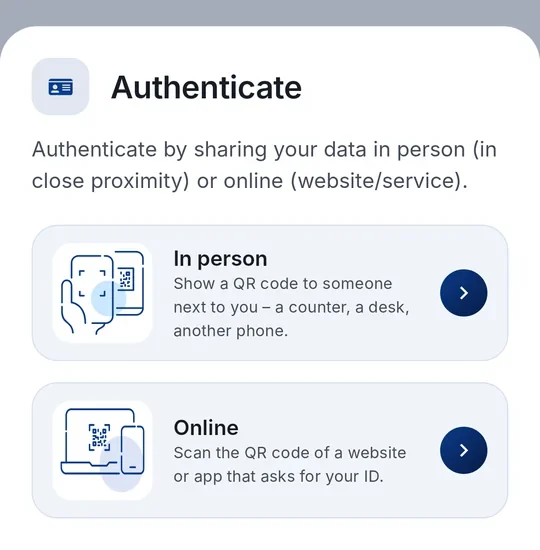
For example at a counter, a hotel reception or a car rental.
Showing your ID to a private person who also has an EU wallet? Tap Person-to-person mode on the QR screen. Use it only with someone you trust – never for a shop, business or authority. It ends after 5 minutes. In this mode you first choose which details you offer; the other wallet can ask only for those, anything else is refused.
- Tap Show ID and choose In person.
- Your phone shows a QR code. The other person scans it with their wallet or reader app – or the reader starts the connection with an NFC tap.
- Your phone shows exactly which details are asked for – for example only “over 18”. You decide what you share.
- Confirm with your PIN or biometrics. The details are sent directly from phone to phone over Bluetooth Low Energy – no internet connection needed.
Bluetooth must be switched on. CodeB Wallet uses Bluetooth in both directions (both roles) for broad reader compatibility. On Android 12 and older the app also asks for the location permission, because Android requires it for Bluetooth scanning; your location is not collected. Showing in person needs the ISO mdoc version of a document.
Show your ID online
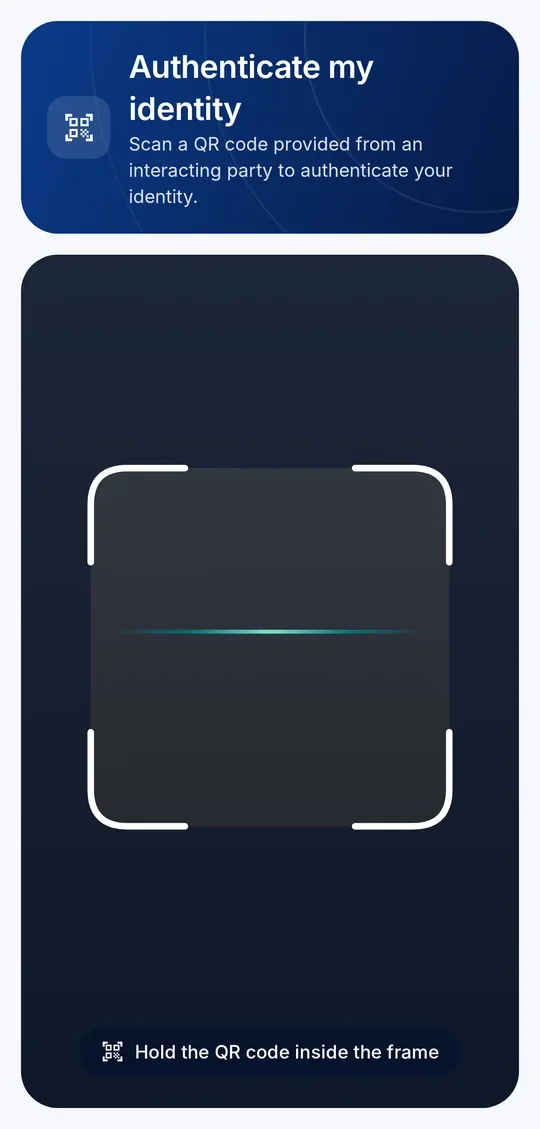
Some websites let you sign in or prove your age with your wallet.
- On the website, choose to sign in or verify with an EU wallet.
- On a computer: tap Show ID, choose Online and scan the QR code on the screen. On the same phone: the website opens CodeB Wallet by itself.
- Check who is asking and for which details. CodeB Wallet tells you if the website could not be verified.
- Confirm with your PIN or biometrics. Only the selected details are shared.
Check someone else’s ID
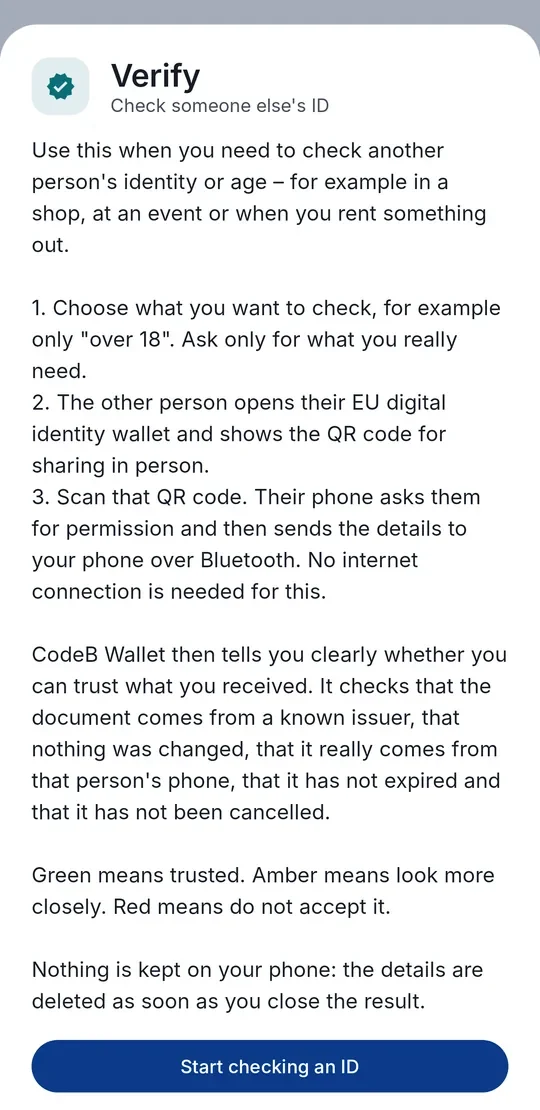
Full guide: Prove your age – without showing your birthday
Use this when you need to check another person’s identity or age – for example in a shop, at an event or when you rent something out.
- Tap Verify on the home screen.
- Choose what you want to check, for example only “over 18”. Ask only for what you really need.
- The other person opens their EU digital identity wallet and shows the QR code for sharing in person. Scan it.
- Their phone asks them for permission and then sends the details to your phone over Bluetooth.
- CodeB Wallet shows the result: green means trusted, amber means look more closely, red means do not accept it.
CodeB Wallet checks the issuer’s signature, that the data is unchanged, the validity period and whether the document has been revoked.
Which issuers are trusted is up to you: in Settings → Trusted certificates for verifying you manage the list. CodeB’s own issuer certificate is built in; you can import further certificates.
While you verify, the app is in verifier mode: use it only for a person who is with you. After 5 minutes on the request or result screen the wallet returns to its start screen.
So that “Verify” cannot be misused as a mass reader, CodeB Wallet sends at most 5 requests per hour, 20 per day and 50 per week; after that it tells you how long to wait.
Nothing is kept on your phone: the details are deleted as soon as you close the result.
Door and PC access with CodeB Access
Full guide: Your phone as a door and PC access card
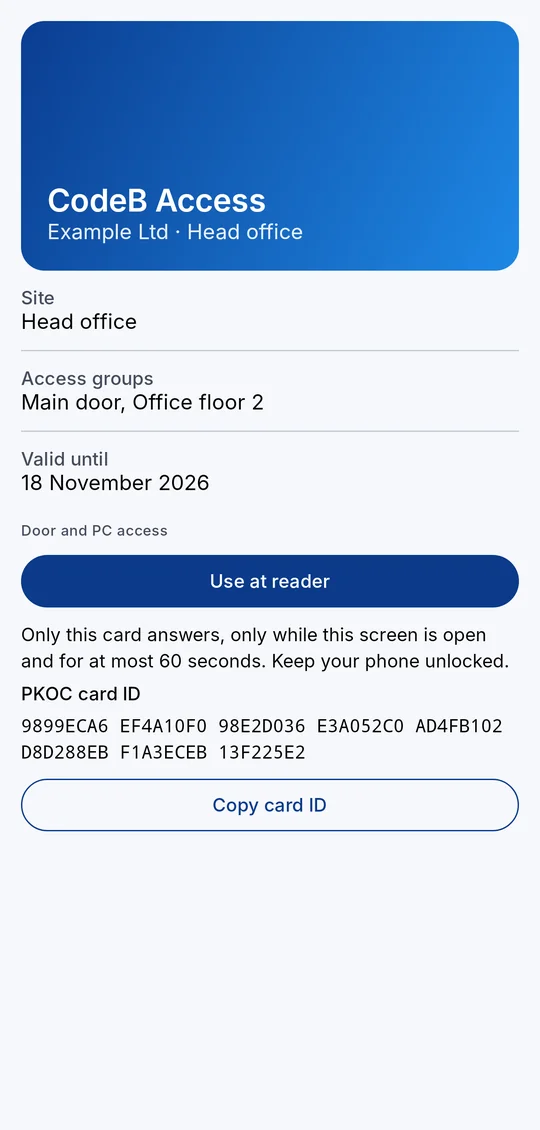
Organisations can issue an access card to your wallet through phone.codeb.io. With it, your phone opens doors and signs you in at a PC with a contactless reader.
- Open the invitation from your organisation (link, QR code or e-mail) and collect the CodeB Access card. It appears on your home screen.
- Before you go to the door or PC, open the card and tap Use at reader.
- Hold your phone to the reader while the countdown runs. Keep the phone unlocked.
- The reader checks the card offline and opens the door or signs you in. Tap Stop if you no longer need it – leaving the screen ends it as well.
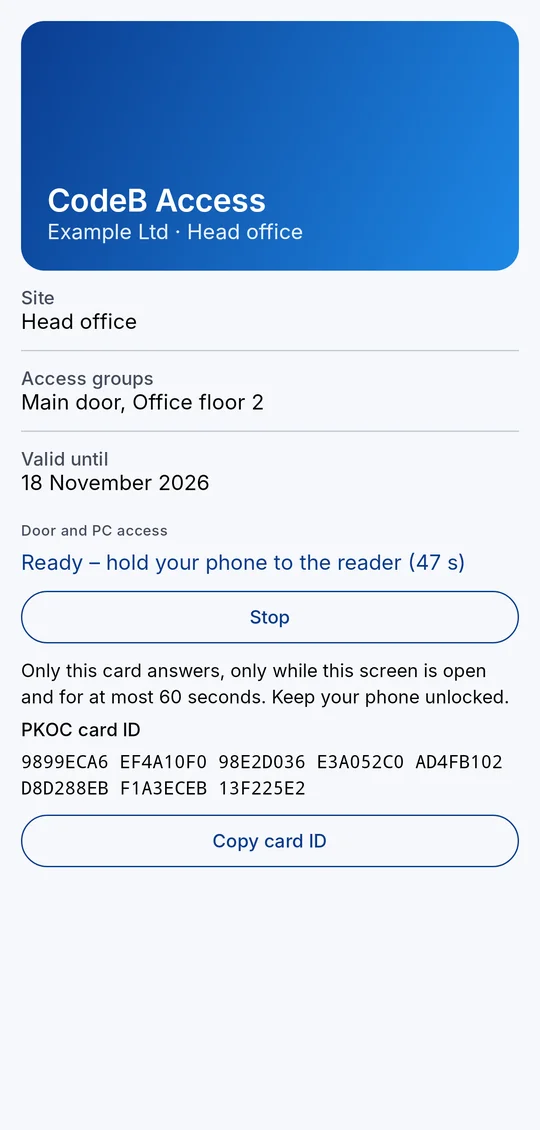
Only the card you chose answers, for at most five minutes, and only while your phone is unlocked. At all other times your phone does not answer any access reader.
Door readers of the open PKOC standard (Public Key Open Credential, PSIA) work as well. Your organisation enrols the PKOC card ID shown on the card; tap Copy card ID to send it. The ID is a public key – the matching private key never leaves your phone’s secure hardware.
The reader receives only a pseudonymous card number, your sites and access groups and the validity – never your name. Every use is listed under History.
Lost your phone? Your organisation revokes the card and can give you a new one on your new phone.
Readers that do not see your card show a hint: open the card in CodeB Wallet, tap “Use at reader” and hold the phone to the reader again.
Your phone as an NFC tag (NFC memory cards)
Full guides: read-only NFC tag · writable NFC tag · readers and smart locks
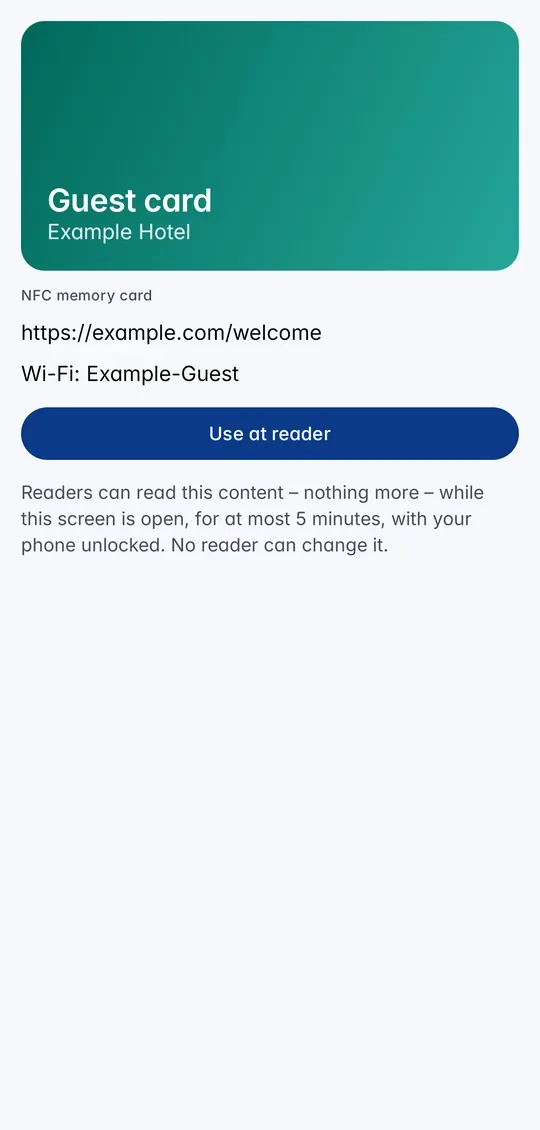
An NFC memory card lets your phone answer like a standard NFC tag (NDEF). It holds a link, a text, a contact card or other data from your organisation. There are two kinds: read-only – readers can only read it – and writable – readers can also store new content on it.
- Accept the invitation from your organisation. The NFC memory card appears on your home screen.
- Open the card. You see its content. Tap Use at reader – or Hold to reader when the card is in front on the home screen.
- Hold your phone to the reader or the other phone while the countdown runs. Keep the phone unlocked.
- Tap Stop when you are done – leaving the screen ends it as well.
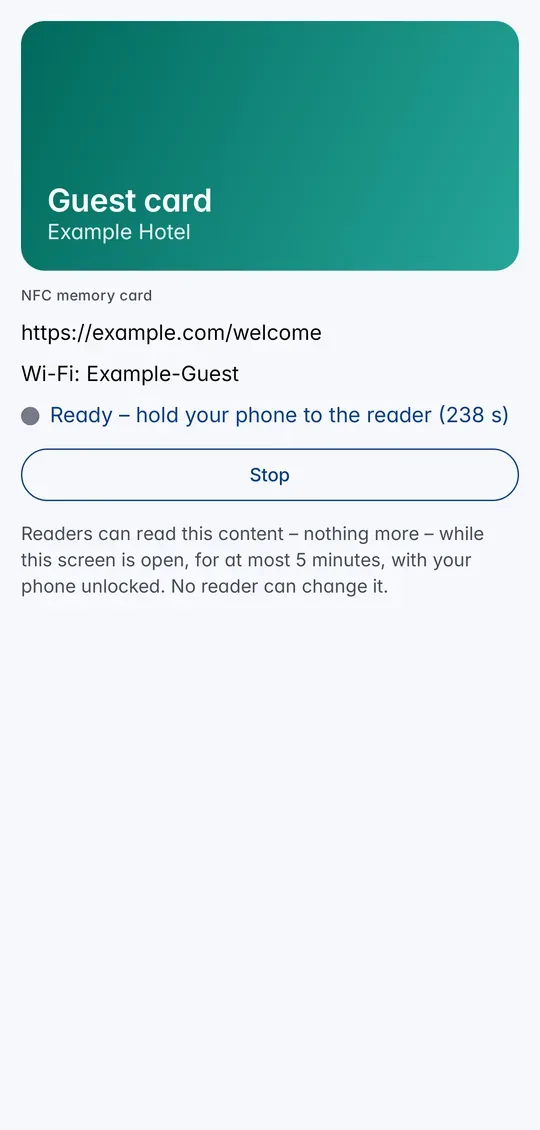
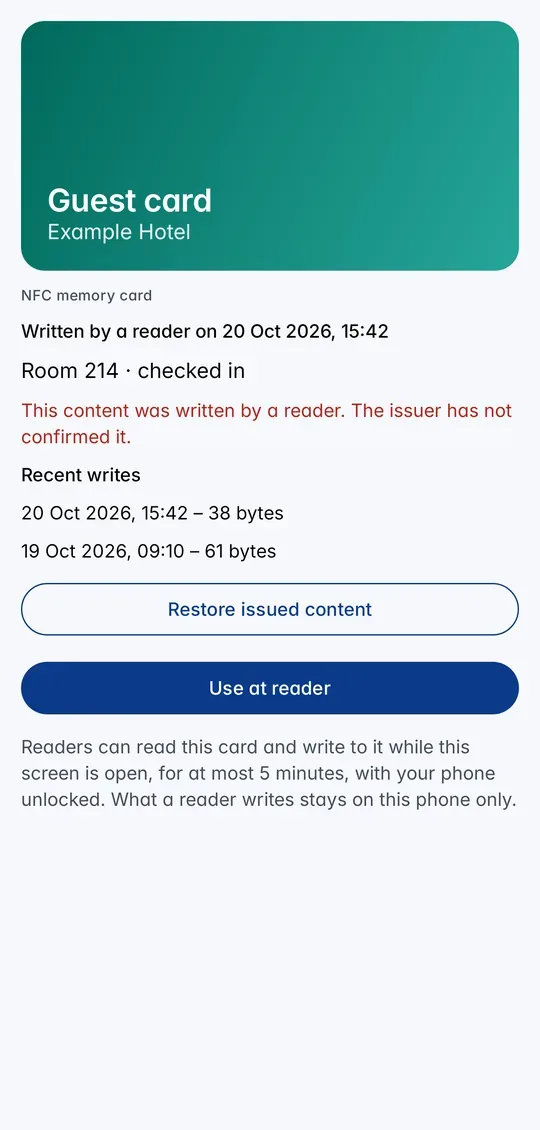
Read-only card: readers see exactly what your organisation issued. Nobody can change it; only a new issue does.
Writable card: a reader or an NFC app (for example NFC Tools on another phone) can store new content, up to the size your organisation set. The card then shows Written by a reader, the content and the note that the issuer has not confirmed it. Recent writes lists the last 20 writes. Restore issued content brings back the original.
Written content stays on your phone only, encrypted. Only the card you chose answers, for at most five minutes, and only while the phone is unlocked. Meanwhile the phone does not offer your ID and does not read other phones.
Like any NFC tag, the content can be copied by whoever reads it – do not store passwords on it. For doors use CodeB Access.
If a reader does not react, open the card again, tap “Use at reader” and hold the middle of the phone’s back to the reader for a moment.
Sign in at a Windows PC with your phone as a PKI card
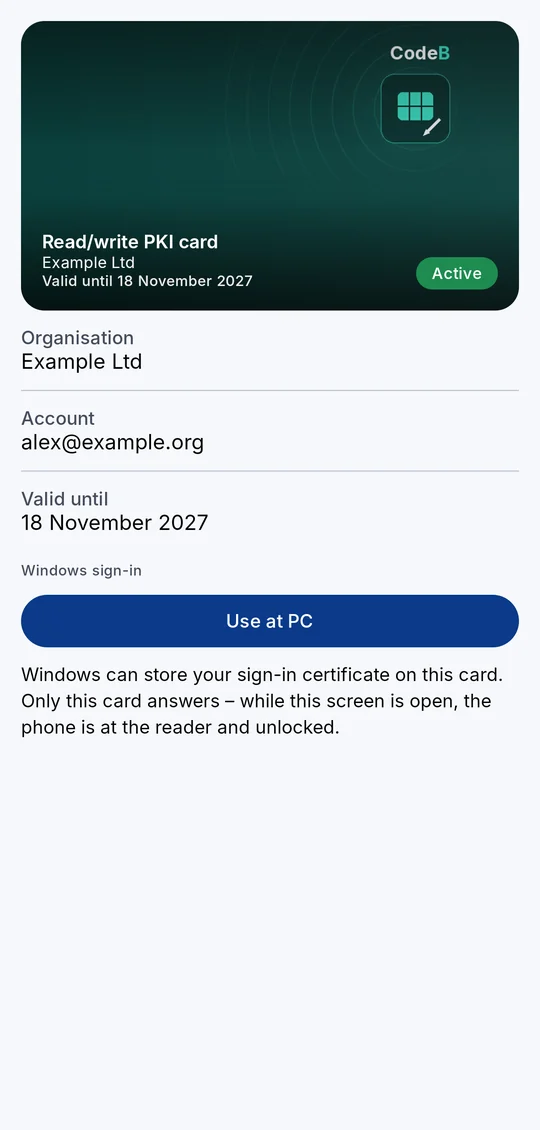
Full guide: Your phone as a smart card for Windows sign-in
Your phone can act as a contactless PKI smart card for signing in at a Windows PC with an NFC reader.
- Your organisation issues the PKI card to your CodeB Wallet (link, QR code or e-mail). It appears as its own card on your home screen. With a read/write PKI card, Windows stores your sign-in certificate on the phone itself. A read-only PKI card receives your organisation’s signing certificate from the server right after you add it; the card page then says “Your organisation’s signing certificate is on this card”.
- The first time you open the card, CodeB Wallet sets it up and asks you to choose the card PIN (read/write: 4 to 16 characters; read-only: 6 to 8 digits). For a read-only PKI card you also see your unblock code (PUK) once – note it down.
- At the PC, open the card in CodeB Wallet and tap Use at PC.
- Hold your phone to the PC’s NFC reader. A light on the card screen shows the connection: grey and pulsing while it waits, green while the phone is connected to the reader, red if the connection drops. The card stays ready until you take the phone away or close the screen. Keep the phone unlocked.
- Windows sees a smart card. Choose it and enter the card PIN.
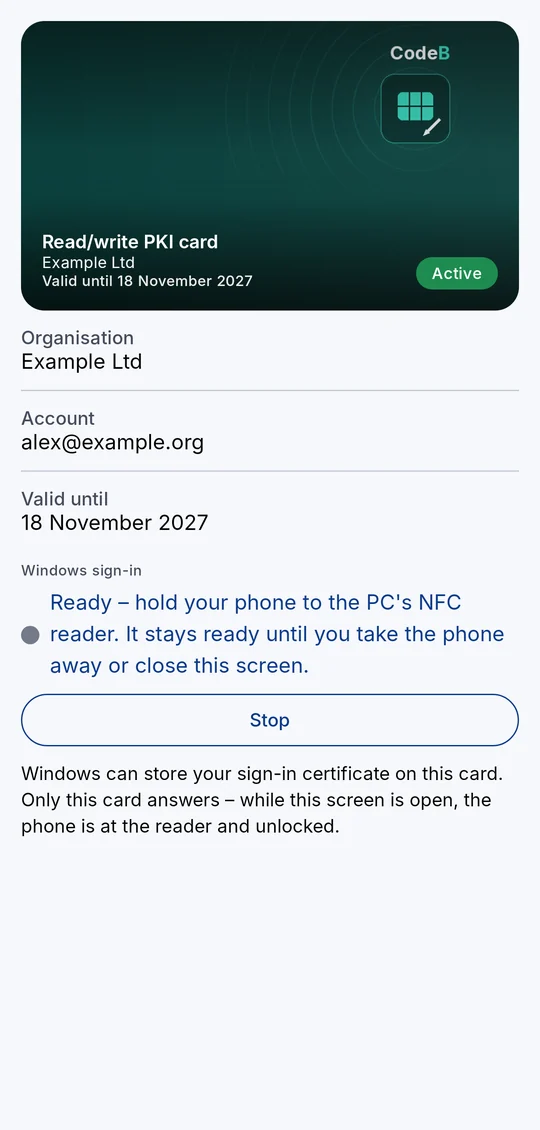
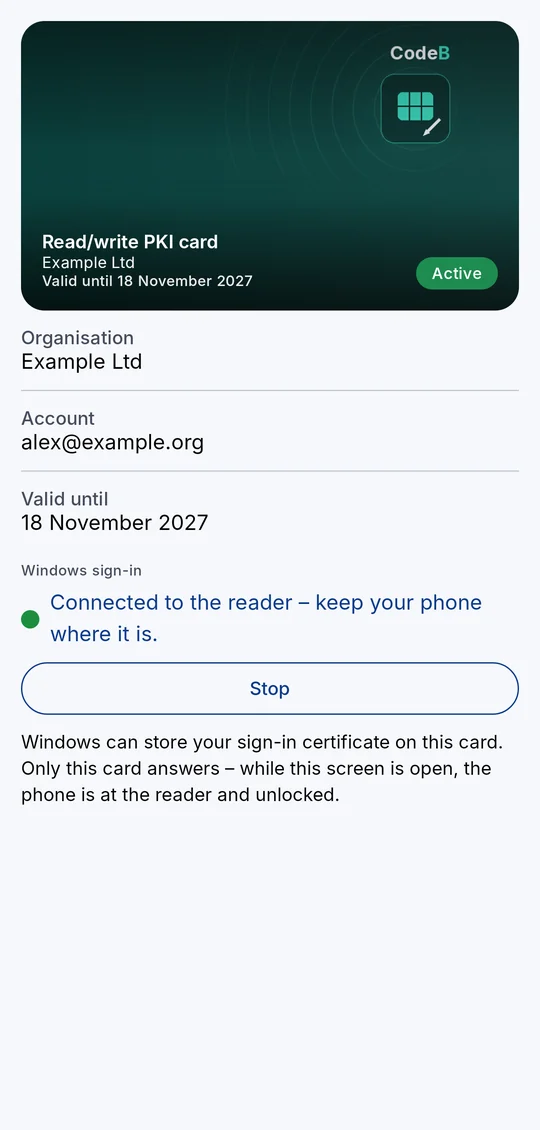
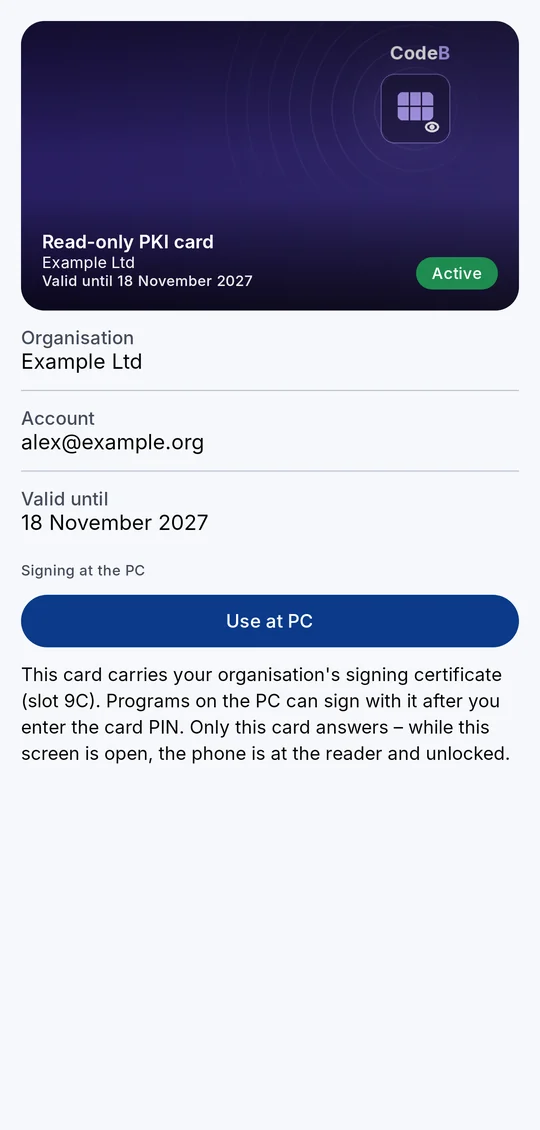
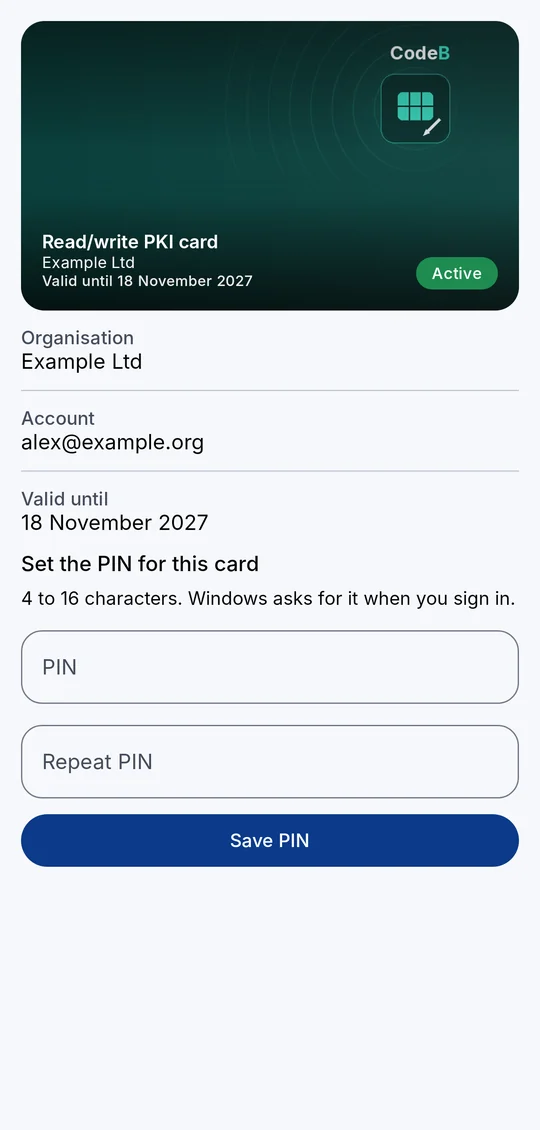
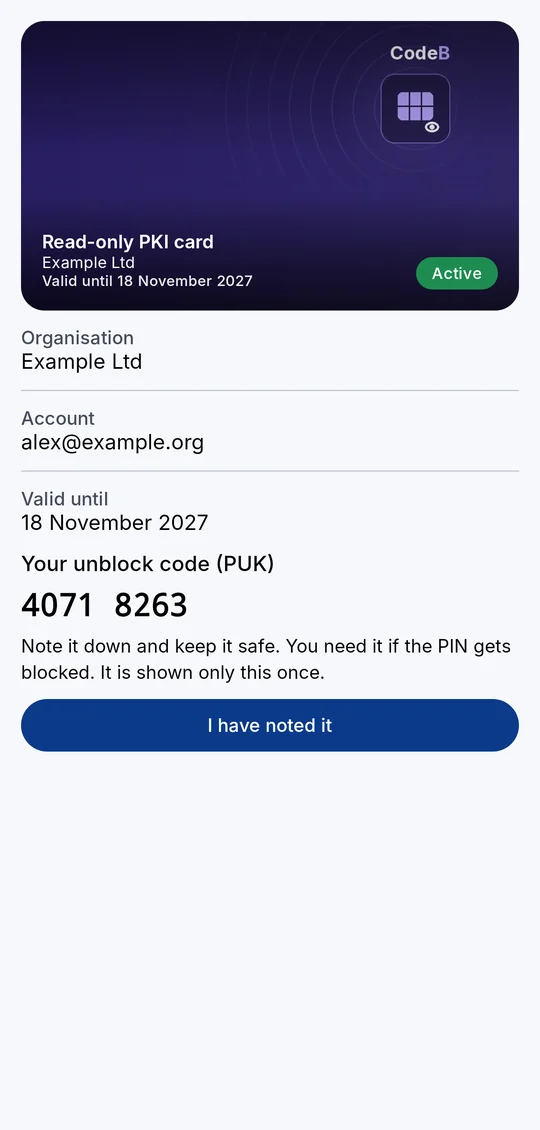
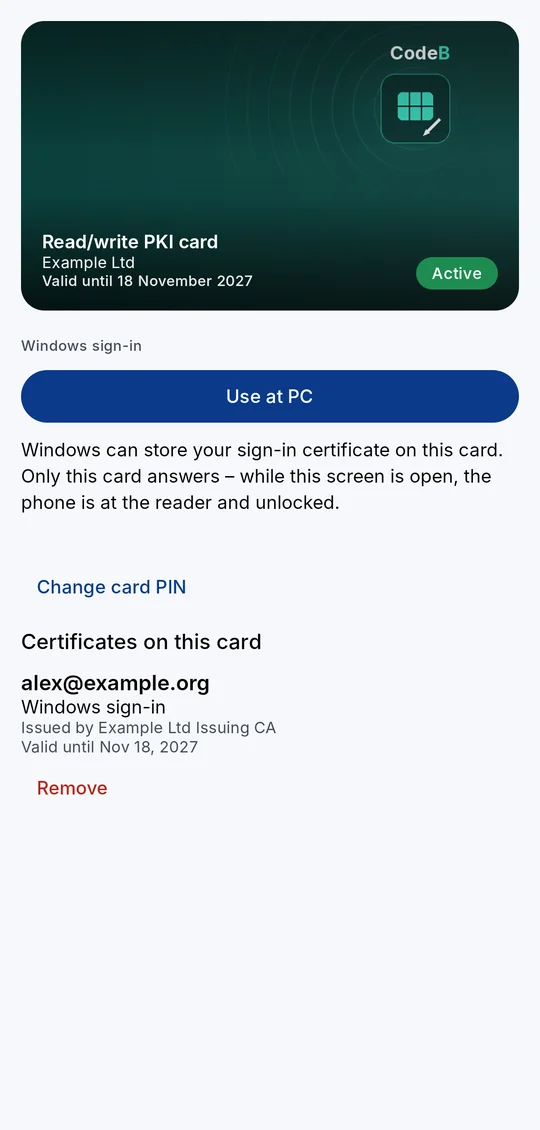
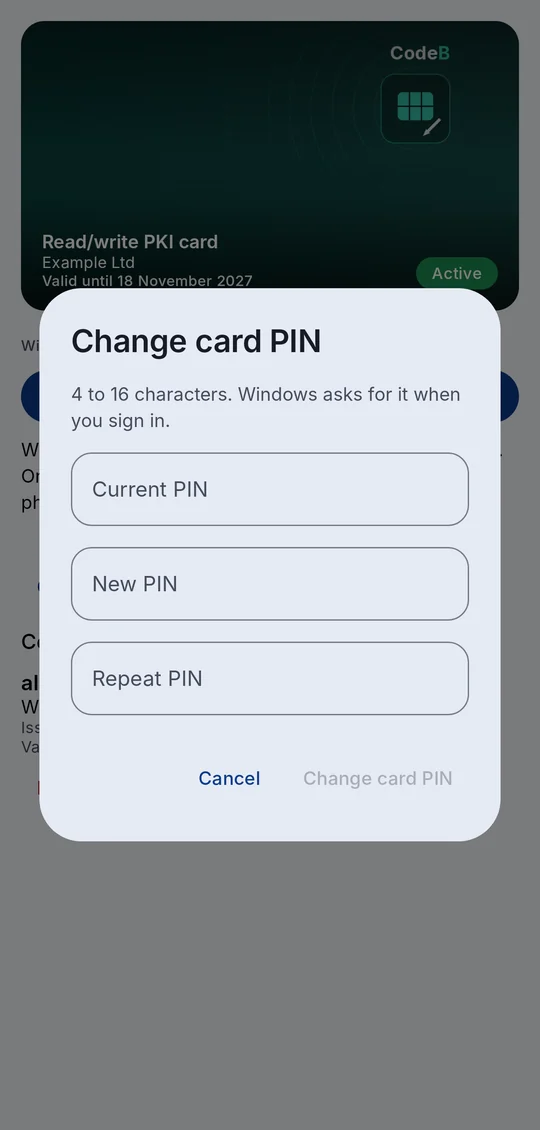
Only the card you chose answers, only while its screen is open, the phone is at the reader and unlocked. It never interferes with door access, payment apps or your other cards.
You can hold several PKI cards. Each card shows a name from its certificate – for a Windows sign-in certificate your sign-in name – or, before Windows has put a certificate on it, “Card …” with the last four characters of its card number. The card page lists the certificates on the card with their purpose, issuer and validity.
To remove a certificate Windows put on a read/write PKI card, open the card, tap Remove next to the certificate and enter the card PIN. The certificate and its key are deleted from the card for good; Windows can no longer use them.
To change the card PIN, open the card and tap Change card PIN: enter the current PIN and the new one twice, then confirm with your fingerprint, face or screen lock. A wrong current PIN counts as a wrong try, exactly as at the PC. If the read-only card’s PIN is blocked, tap Unblock with PUK and enter the PUK you noted when the card arrived. A blocked read/write card is unblocked or re-issued by your organisation.
Every use needs the card PIN. The read/write card’s key is made in your phone’s secure hardware and never leaves it. The read-only card’s signing key is your remote-signing key from your organisation’s server, kept in your phone’s secure hardware; revoking the card stops the card, and your organisation revokes the signing certificate separately. After too many wrong PINs the card is blocked.
For administrators: how to issue PKI cards and set up the Windows certificate authority (phone.codeb.io).
Read your passport or ID card
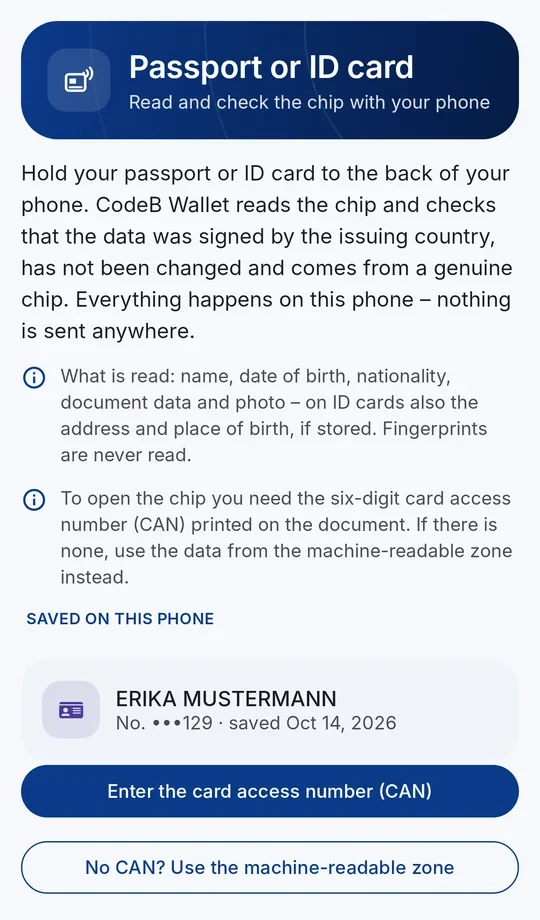
Full guide: Read and check passports and ID cards with NFC
CodeB Wallet can read the chip of your electronic passport or ID card and check that the document is genuine.
You need an Android phone with NFC and a document with a chip – passports show a chip symbol on the cover, newer ID cards have the chip inside.
- On the home screen tap ID card.
- Choose how to open the chip: with the card access number (CAN) – the 6 digits printed on the front of many ID cards – or with the machine-readable zone. For the machine-readable zone the camera reads the two or three lines of characters at the bottom of the photo page; you can also type the data by hand. For a passport, hold the phone a little further away so that both lines fit across the whole frame; in poor light, switch on the camera light.
- Hold the document flat against the back of your phone and keep it still until the reading is complete. If NFC is switched off, the app asks you to switch it on. If no chip is found after about 10 seconds, the app shows tips: move the phone slowly, for a passport try the front cover and then the photo page, and remove a thick case.
- You see the result: whether the document is genuine, the issuing country, and the data from the chip with the photo.
- Tap Save on this phone if you want to keep a copy. It is encrypted on your phone and appears as its own card on the home screen; tap the card to open it again. You can delete it at any time.
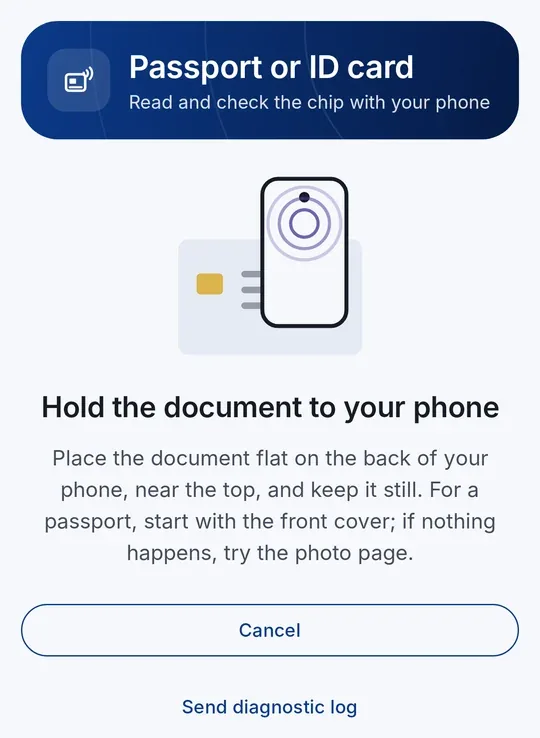
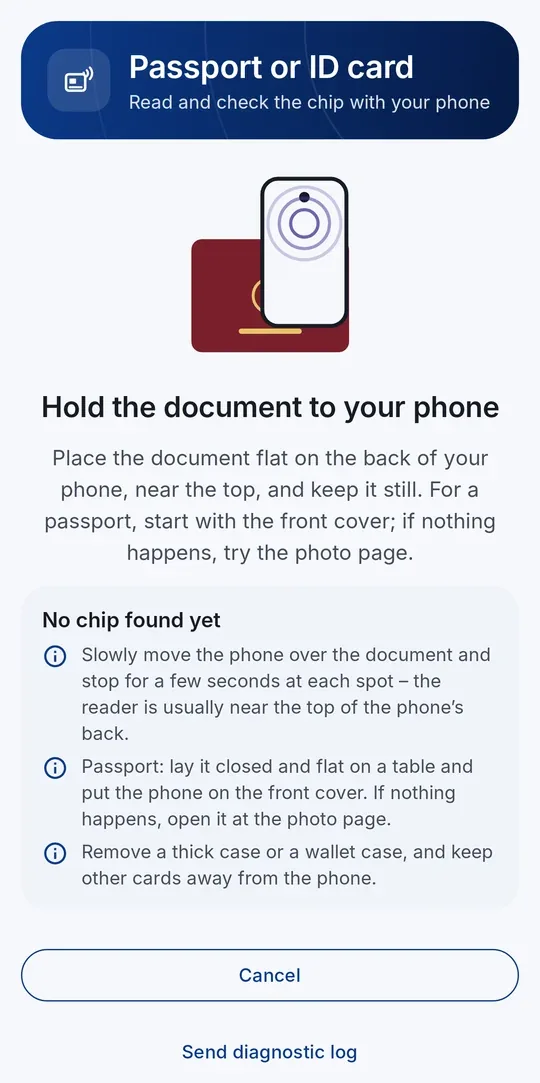
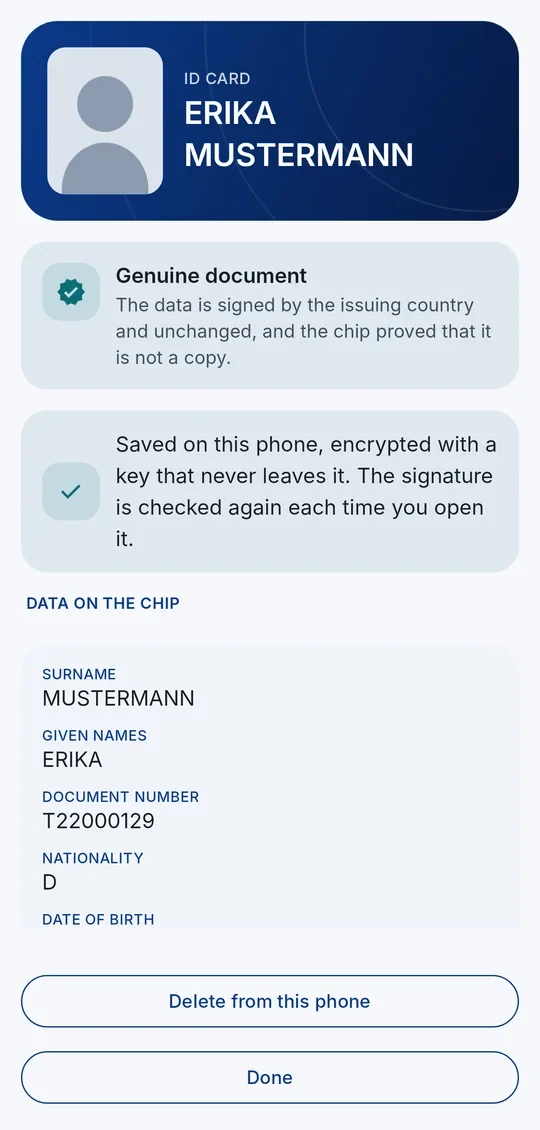
What the check means: the chip’s data must carry a valid signature of the issuing country (checked against the country certificates), and the chip must prove that it is not a copy.
Nothing is sent anywhere when you read a document this way. A saved copy is not an EU digital identity document and cannot be shown to others with the wallet.
Take the phone out of a thick case and try different positions – the NFC antenna is usually in the middle or near the camera.
Reading your ID card for the CodeB PID Provider
- 1Sign-in pageChoose to read your document with CodeB Wallet
- 2Check who asksContinue or Decline
- 3Hold your documentThe server reads the chip end to end
- 4Continue sign-inYour PID is added to your wallet
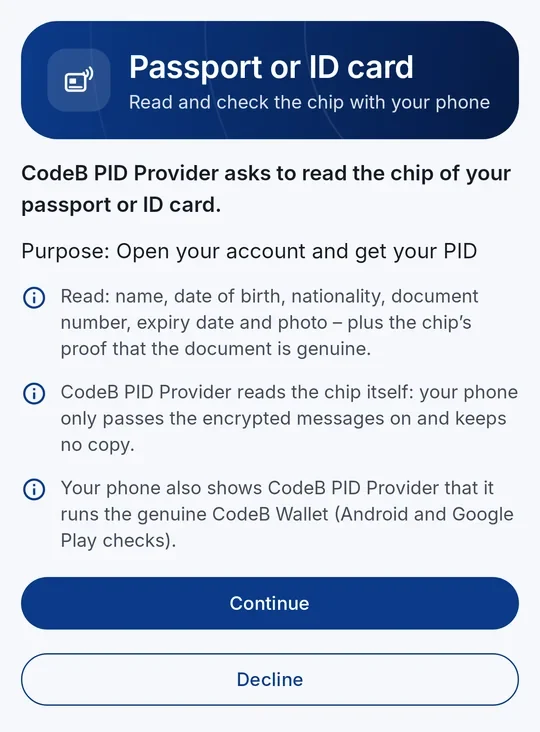
When you add your Personal ID (PID) from the CodeB PID Provider, its sign-in page may offer to read your ID card or passport. This fills in your details directly from the chip.
- On the sign-in page, choose to read your document with CodeB Wallet. On the same phone the wallet opens by itself; on a computer, scan the QR code with your phone.
- The wallet shows who is asking and what will be read. Tap Continue – or Decline if you do not want this.
- Enter the card access number or scan the machine-readable zone, then hold the document to your phone.
- When the reading is finished, tap Continue sign-in. The sign-in continues in your browser, and then your PID is added to your wallet.
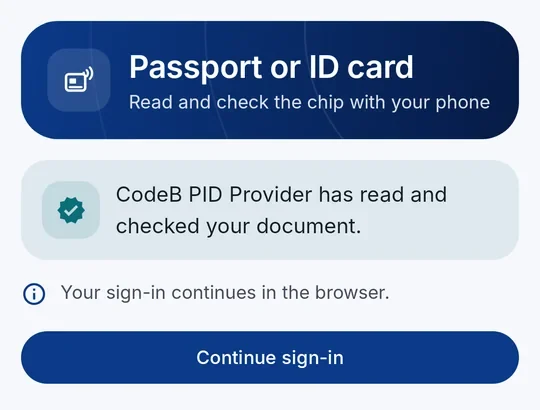
Here the PID Provider’s server reads the chip itself. The chip and the server set up their own end-to-end encrypted and authenticated channel (PACE, Chip Authentication, Secure Messaging): your phone only passes these messages on – it cannot read or change them, and neither can anyone in between; at most the reading can be interrupted. Your phone keeps no copy, and it also shows the server that it runs the genuine CodeB Wallet (Android and Google Play checks).
This also works right after installing the app: set your PIN, and the reader opens on its own – you need no other card in your wallet. If you installed the app from the sign-in page, go back to that page and tap “Open in CodeB Wallet” again.
Create a free CodeB account
- 1Settings“Create a free CodeB account” – no other card needed in your wallet
- 2Hold your passport or ID cardphone.codeb.io reads and checks the chip through your phone
- 3Confirm your e-mailType the 6-digit code from the mail
- 4Account readySet your password, add the test PID and Photo ID
Full guide: Free CodeB account – opened with your passport or ID card
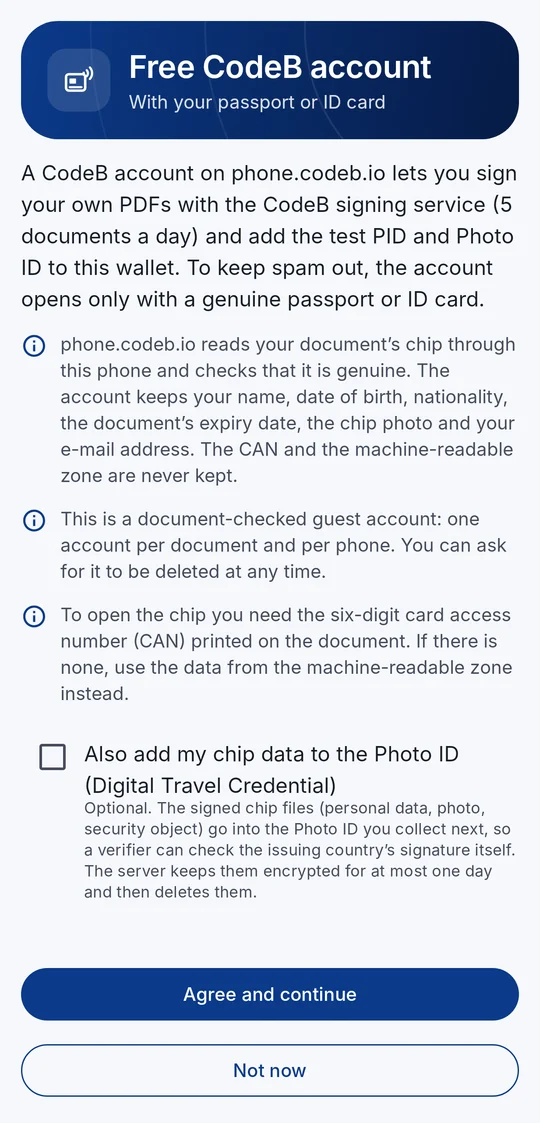
Many functions of CodeB Wallet use an account on phone.codeb.io: signing your own PDFs with the CodeB signing service and the test PID and Photo ID. You can create this account in the app – free, in about two minutes, with your passport or ID card. To keep spam out, the account opens only with a genuine document: phone.codeb.io reads its chip through your phone and checks that it is genuine.
It is a document-checked guest account: one account per document and per phone. You can sign 5 of your own documents a day; signing documents someone else asks you to sign does not count.
What you need: an Android phone with NFC switched on, your passport or ID card with a chip, your e-mail address – and about two minutes.
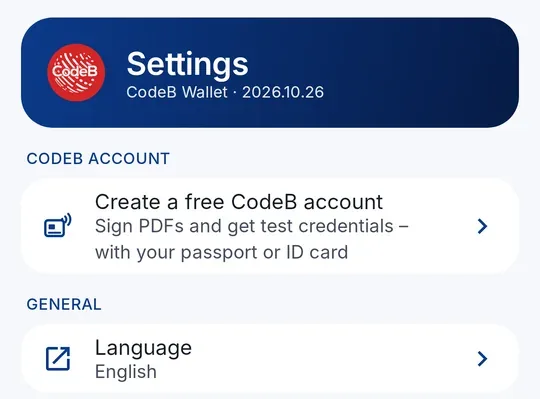
- On the home screen tap the three lines at the top left, then Settings, and tap Create a free CodeB account in the section “CodeB account”. You need no other card in your wallet.
- Read what is checked and kept, then tap Agree and continue.
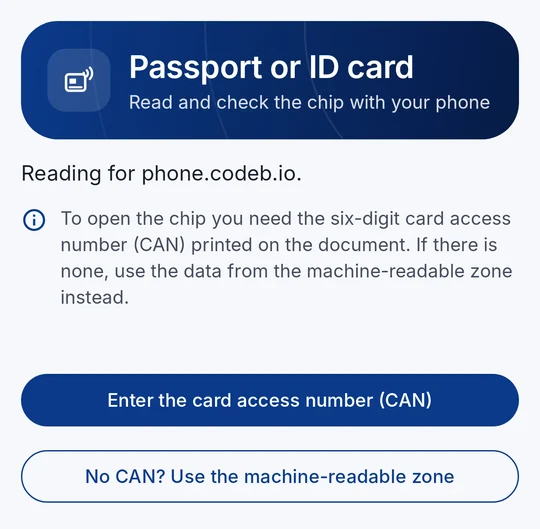
- ID card: tap Enter the card access number (CAN) and type the 6 digits printed on the front of the card. Passport, or no CAN on your card: tap No CAN? Use the machine-readable zone and hold the camera over the two or three lines of letters and numbers at the bottom of the photo page.
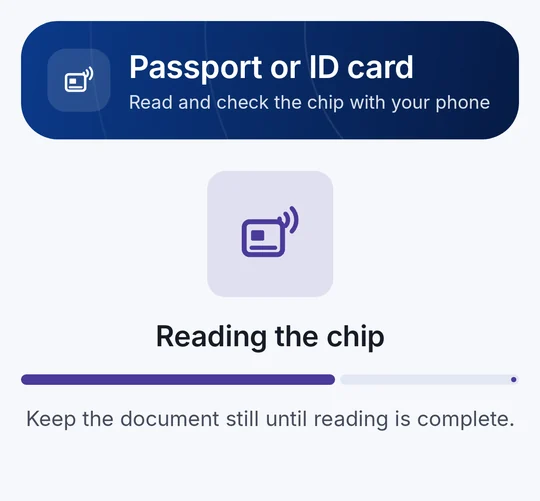
- Hold the document flat on the back of your phone, near the camera, and do not move it until the bar is full – a few seconds. If nothing happens, move the document slowly over the back of the phone and remove a thick case.
- Your document is genuine: type your e-mail address and tap Send code.
- Open the mail from phone.codeb.io, type the 6-digit code and tap Open account.
- Your account is ready. Tap Add my documents (PID and Photo ID, test) and then Accept: your test PID is added. Back on the home screen the Photo ID follows by itself – tap Accept again.
- Last step: open the mail and set your password with the link. You need it to sign in on phone.codeb.io.
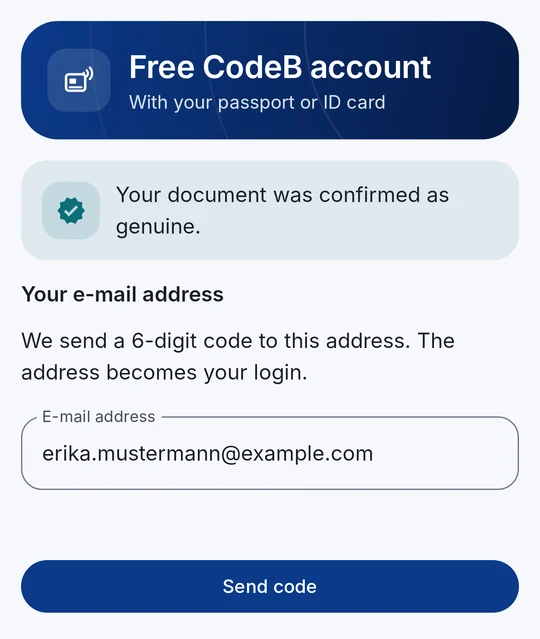
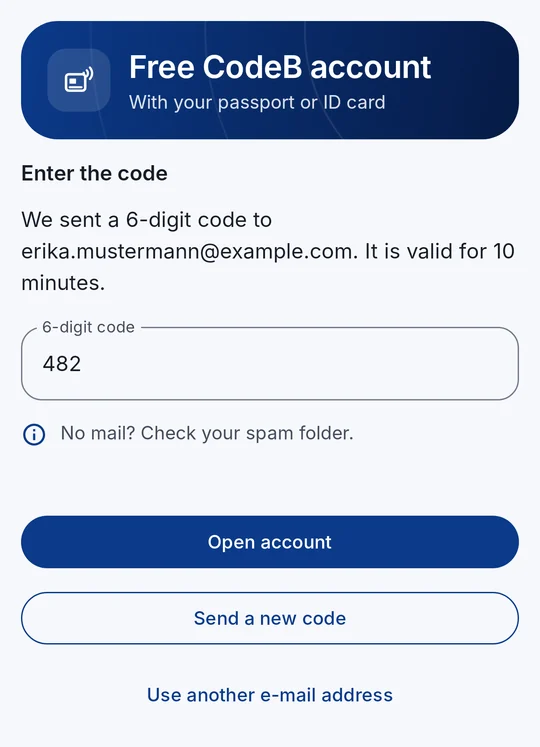
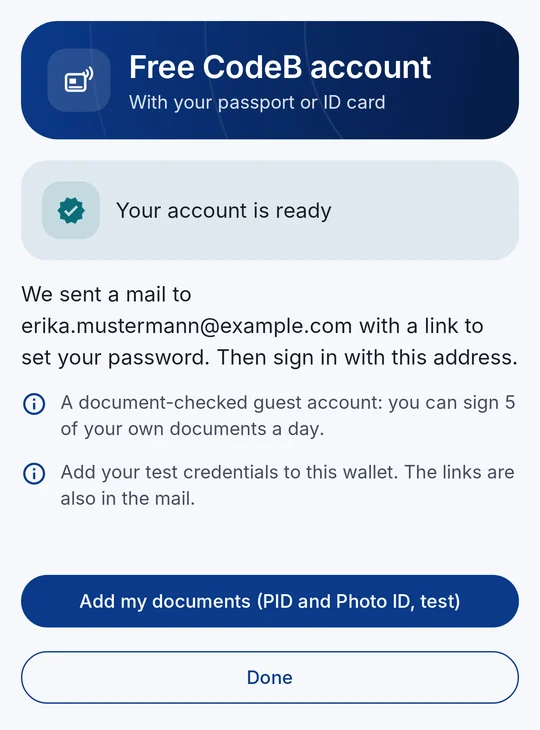
No mail? Check your spam folder, or tap Send a new code. A code is valid for 10 minutes; after 5 wrong codes, start again.
“This document already has an account”: nothing new is opened. That account’s e-mail address gets a notice – sign in there, or set a new password with “Forgot password” on phone.codeb.io.
Lost your password or got a new phone? Set a new password on phone.codeb.io with the address you used. Your account stays the same.
“This phone cannot be verified”: the account needs a phone that passes Android’s and Google Play’s checks, with the app installed from Google Play.
The chip cannot be read: hold the document still at the phone’s NFC antenna and remove thick cases; check the CAN, or use the machine-readable zone. An expired document cannot open an account.
Too many tries: to keep spam out, only a limited number of accounts can be opened per network and day, and one per phone and document. Try again later.
What is kept: your name, date of birth, nationality, the document’s expiry date, the chip photo and your e-mail address. The CAN, the machine-readable zone and the raw chip data are never kept. You can have the account deleted at any time; in Settings, “CodeB account” opens your account on phone.codeb.io.
On your Android phone, the link https://myeuid.app/open/account opens the account screen in CodeB Wallet directly. It also works right after installing: set up your wallet PIN, and the app continues with the account.
The account proves that a genuine document was held to a genuine phone. It is not an official identity and not a qualified signature – signatures from the CodeB signing service are advanced electronic signatures (AdES).
Your CodeB account in the app
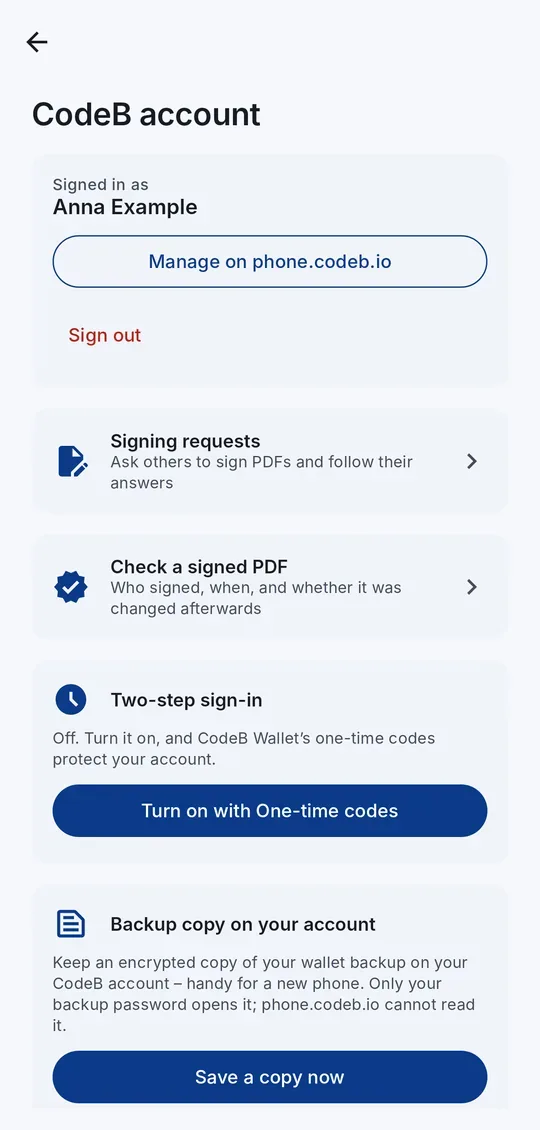
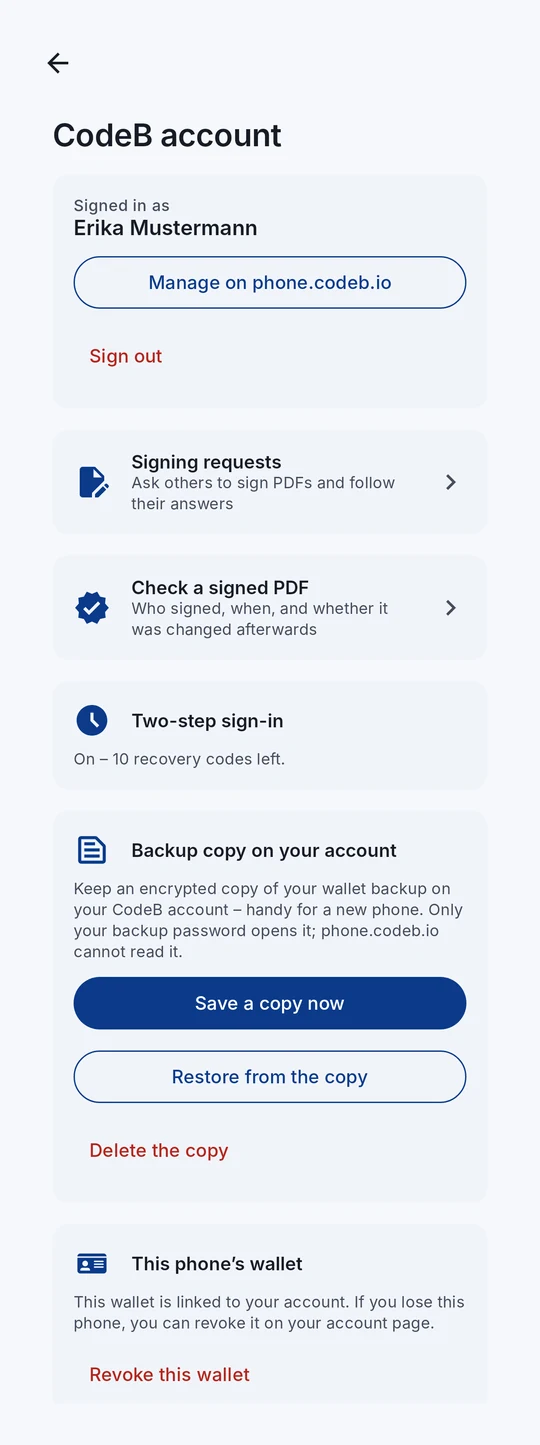
Sign in to your CodeB account on phone.codeb.io right in the app – with your password, a passkey or your EU Wallet. Then you can ask other people to sign PDFs, check the signatures of any PDF, turn on two-step sign-in with the app’s own one-time codes, add your membership card and keep an encrypted copy of your backup on your account.
The sign-in page of phone.codeb.io opens in your browser; the app keeps the sign-in only on this phone. When phone.codeb.io ends the session (after some hours), the app asks you to sign in again.
- Open Settings and tap Sign in to your CodeB account (or tap the link myeuid.app/open/codeb-account on your phone).
- Tap Sign in. phone.codeb.io’s sign-in page opens in your browser – sign in as usual.
- Tap Open CodeB Wallet on the page that follows. The account screen shows that you are signed in.
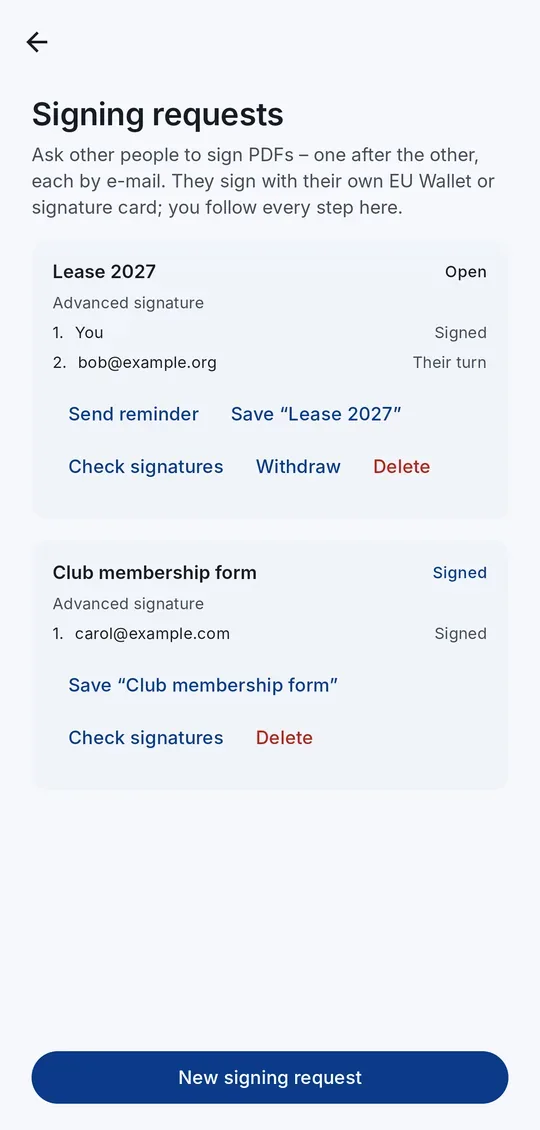
Signing requests. Tap Signing requests → New signing request, choose up to 10 PDFs, the signature level (advanced, or qualified with a certificate that states it), whether you sign first, and the people who sign after you, in order. Each person gets an e-mail and signs with their own EU Wallet or signature card. You follow every step in the app, send a reminder, withdraw the request, save the signed PDF or check its signatures.
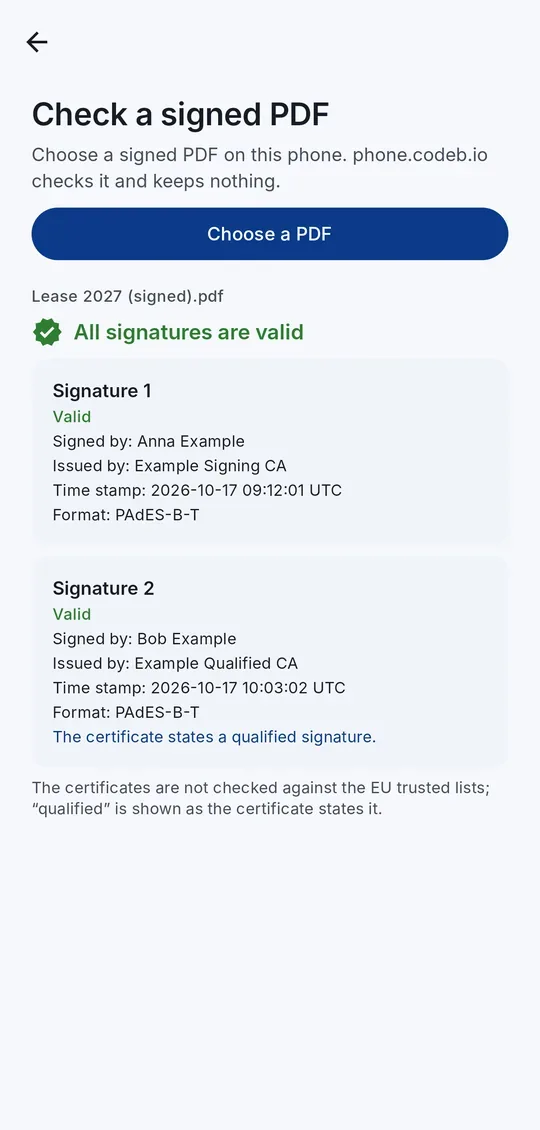
Check a signed PDF. Choose any PDF on your phone: you see who signed, when, in which format and whether the document was changed afterwards. phone.codeb.io checks it and keeps nothing. The certificates are not checked against the EU trusted lists; “qualified” is shown as the certificate states it.
Two-step sign-in. Tap Turn on with One-time codes: the app adds your account to its own one-time codes and confirms it at once. Write down the recovery codes it shows – they are shown only once.
Backup copy on your account. Tap Save a copy now and choose a backup password: the copy is encrypted on your phone; phone.codeb.io cannot read it. On a new phone, sign in and tap Restore from the copy.
Membership card. When your account details are complete, Membership card adds your CodeB membership card to the wallet.
This phone’s wallet. While you are signed in, the app links this phone’s wallet to your account. If you lose the phone, open your account page on phone.codeb.io and revoke it there: it then gets no new documents, and the documents phone.codeb.io issued to it are withdrawn. You can also tap Revoke this wallet in the app – this cannot be undone.
The account features need a CodeB account on phone.codeb.io. No account yet? Create a free one with your passport or ID card (see above).
Your cards from phone.codeb.io and the sign-in card
On phone.codeb.io/member-card.html (“My wallet credentials”) you see the cards phone.codeb.io has for you and add them to CodeB Wallet. Sign in on phone.codeb.io first.
- Open phone.codeb.io/member-card.html and sign in.
- Choose a card and add it: on the phone with CodeB Wallet, tap the button; on a computer, scan the QR code with CodeB Wallet.
- Confirm in CodeB Wallet. The card appears on your home screen.
Sign-in card. Tap Add a sign-in card to my wallet. Afterwards you sign in to phone.codeb.io without a password: choose Sign in with my CodeB sign-in card and confirm in CodeB Wallet.
The sign-in card holds only a random sign-in number for your account. It shows that you hold the card – not who you are.
The same page lists your sign-in cards. If you lose your phone, revoke the card there; it then no longer works.
Sign in with your eID card
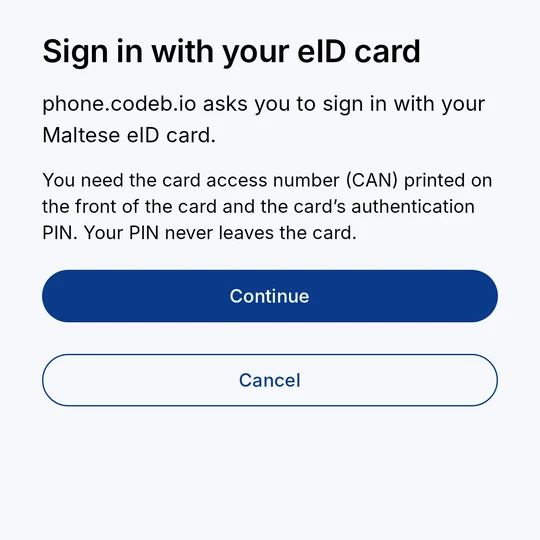
Sign in to phone.codeb.io with your Maltese eID card. The sign-in page shows a QR code; CodeB Wallet reads the card over NFC, the card signs a one-time challenge with its authentication key, and your browser is signed in. Your PIN and the card’s key never leave the card. Only the Maltese eID card is supported for now.
- On the sign-in page of phone.codeb.io choose Sign in with eID card. A QR code appears.
- Scan the QR code with your phone’s camera (or tap the link on the phone). CodeB Wallet opens and shows who asks you to sign in – tap Continue.
- Enter the 6-digit card access number (CAN) printed on the front of the card.
- Hold the card flat against the back of your phone and leave it there.
- Enter the card’s authentication PIN. The card signs, and the app sends the answer to phone.codeb.io.
- You see “You are signed in”. Go back to your browser – it continues by itself.
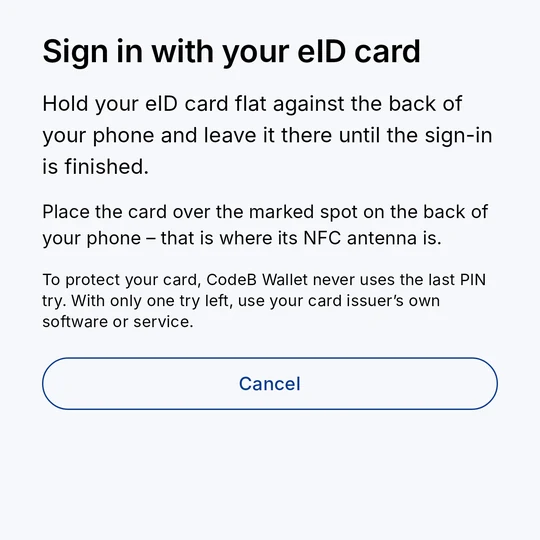
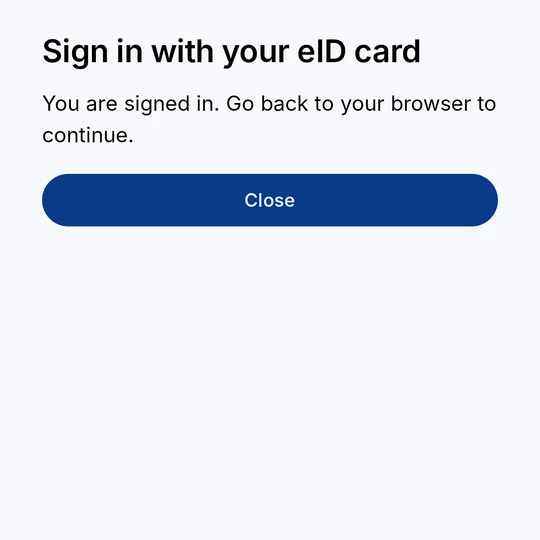
The first time phone.codeb.io may ask you in the browser to confirm the name on the card and link the card to your account.
Only one PIN try left? CodeB Wallet never uses the last try, to protect your card.
“This sign-in has expired”: the QR code is valid for a few minutes. Start again in the browser.
Sign a PDF document
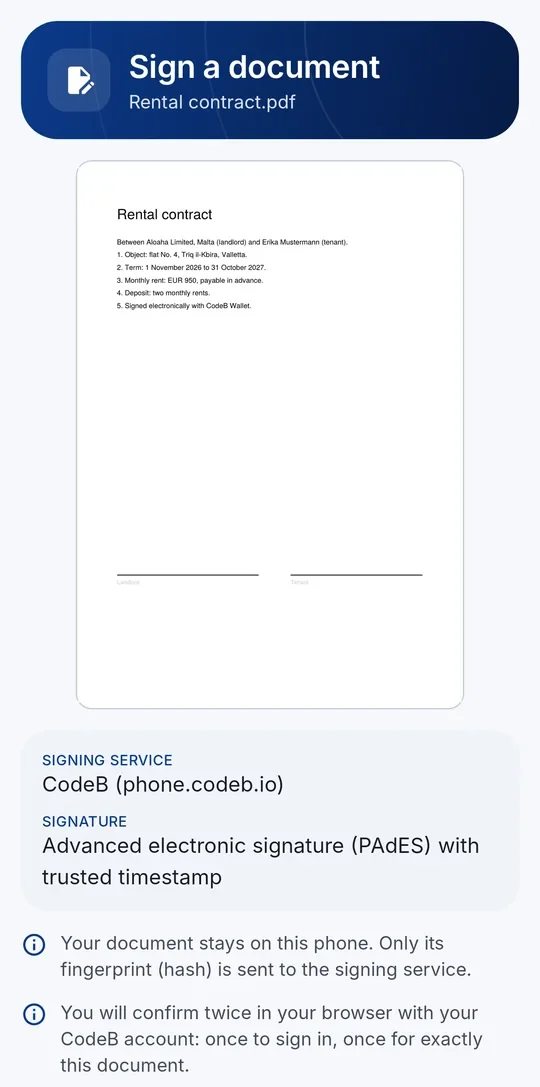
With CodeB Wallet you sign PDF documents on your phone with an advanced electronic signature (AdES) via the CodeB signing service. The signature is a PAdES signature with a trusted timestamp.
Overview of both ways to sign – your signature card or the CodeB signing service, chosen for every signature: How signing works.
- On the home screen tap Sign, then Select document and pick a PDF on your phone.
- Check the document on the review screen: swipe or use the arrows to go through the pages. You also see the signing service and the signature type.
- Tap Sign document. Your browser opens: sign in with your CodeB account – with password, passkey or your EU Wallet.
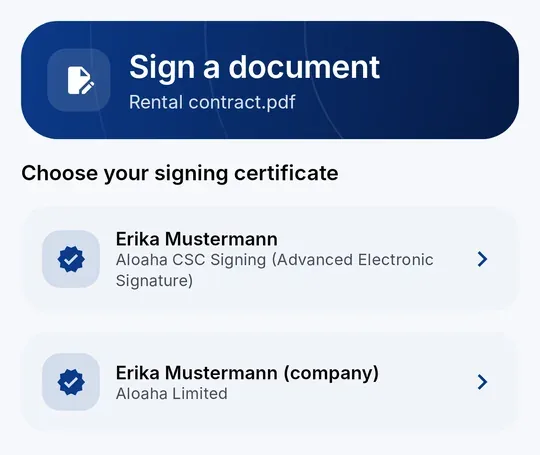
- Back in the app, CodeB Wallet prepares the document. If you have more than one signing certificate, choose the one you want to use.
- The browser opens again: confirm that you want to sign exactly this document.
- The app signs the document and adds a trusted timestamp.
- You see “Document signed”. Tap Save to phone (and choose a folder), Share or Done.
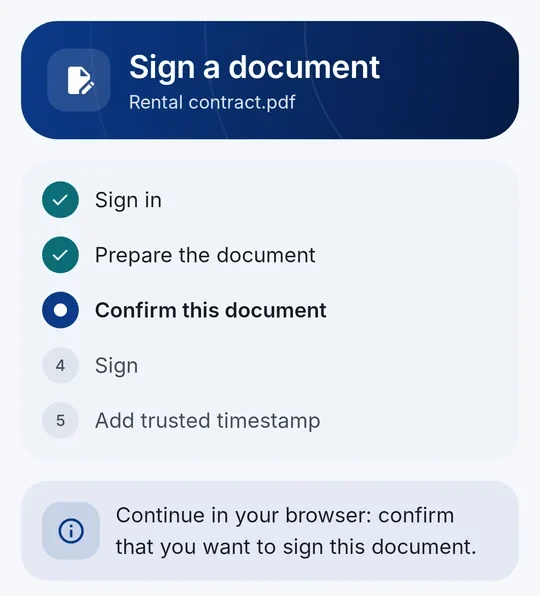
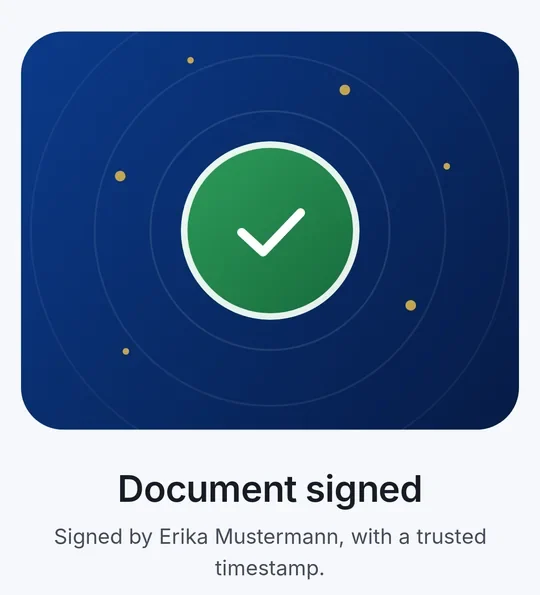
If you cancel or something goes wrong, the app tells you why – with the signing service’s own message, for example that you first need to link your EU Wallet or set up a passkey.
Limits: PDFs up to 40 MB can be signed. Password-protected PDFs cannot be signed.
The signature is invisible on the page; PDF readers show it in their signature panel. Earlier signatures in the PDF stay valid.
Your PDF stays on your phone; the signature is added to the document on your phone.
CodeB Wallet uses Aloaha’s own PDF signing technology – the same technology Aloaha uses on its servers. Aloaha has been active in PDF development and digital signatures since 2003.
Signatures from the CodeB signing service are advanced electronic signatures (AdES), not qualified electronic signatures (QES). To sign with your own signature card instead, see the next section.
Signing request from a website: see Sign a document from a website (QR code).
For every signature you have to confirm again that it is really you. This is required by law, so that nobody can sign in your name.
Sign a document from a website (QR code)
- 1PDF on the websiteUpload 1–10 PDFs on phone.codeb.io/sign-request and choose who signs
- 2Scan the QR codeWith the QR scanner in CodeB Wallet – or tap “Open in CodeB Wallet”
- 3Check and signSee who asks and every document; sign with your card or the CodeB signing service
- 4Signed PDF backThe page shows the progress; the next person gets an e-mail
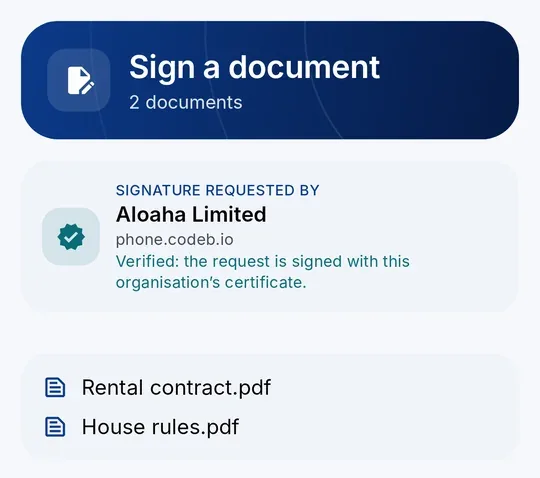
A website can ask you to sign one or more PDFs – for example a contract that several people sign one after another. On phone.codeb.io/sign-request anyone with a CodeB account (a guest account too) uploads the PDFs, and CodeB Wallet signs them by scanning a QR code. The PDF never has to be e-mailed around.
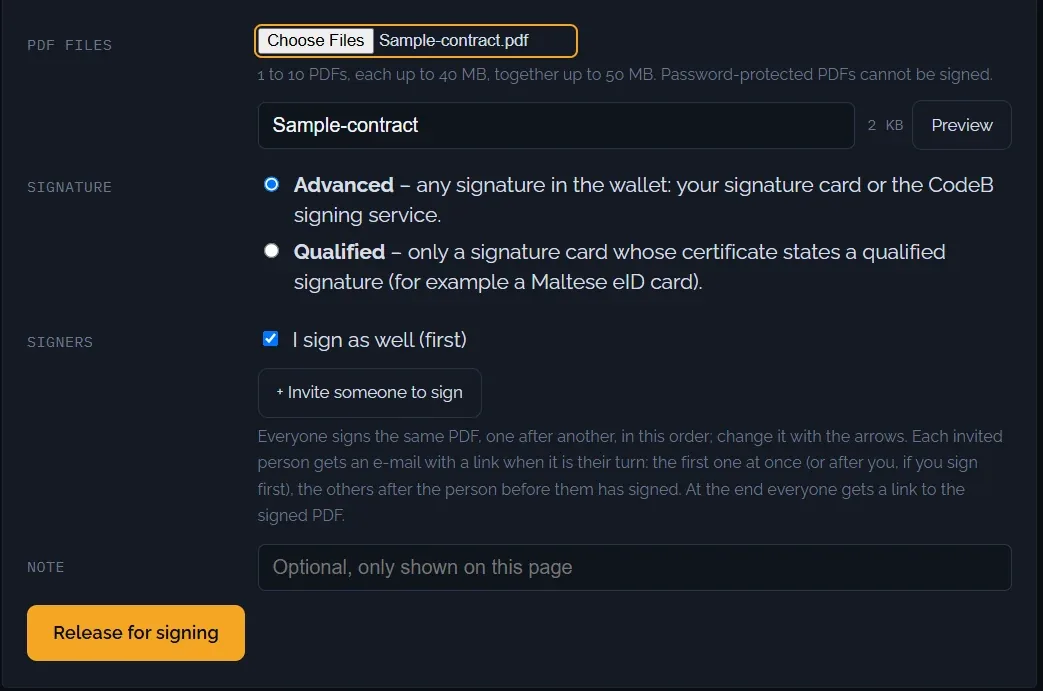
- On the website: sign in on phone.codeb.io/sign-request, upload 1–10 PDFs (each up to 40 MB) and choose Advanced (signature card or CodeB signing service) or Qualified (only a signature card whose certificate states a qualified signature).
- Choose who signs: I sign as well (first) and up to 5 people invited by e-mail (guest accounts: 2), in the order set with the arrows. Then tap Release for signing.
- When it is your turn, the page shows a QR code. In CodeB Wallet open the QR scanner and scan it – or, on the same phone, tap Open in CodeB Wallet.
- The wallet shows who asks for the signature – with “Verified” when the request is signed with that organisation’s certificate – and every document. Check them.
- Sign with your signature card over NFC or with the CodeB signing service – or decline.
- The website shows the progress live. When everyone has signed, the signed PDF can be viewed and downloaded there.
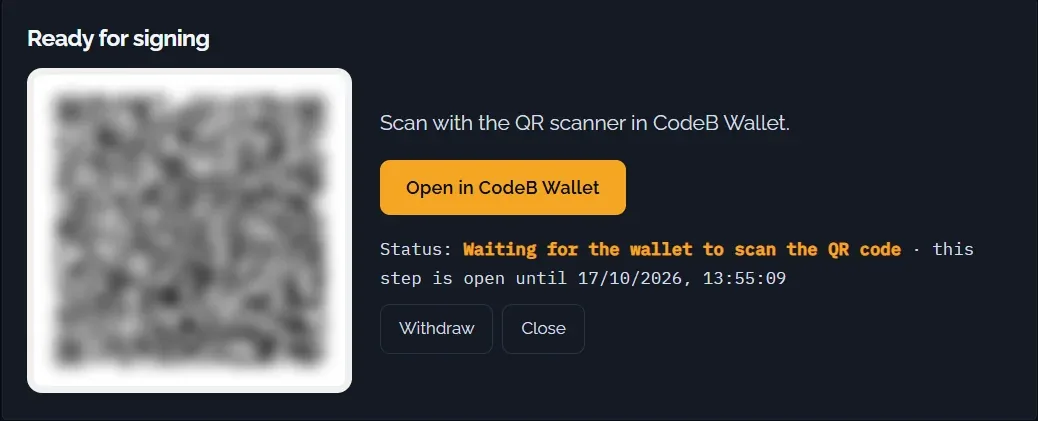
Invited by e-mail? You get the mail “Please sign: …” when it is your turn. The link opens the page with the QR code and “Open in CodeB Wallet”; you need no account on the website. At the end everyone gets a link to the signed PDF.
Every signer signs the PDF exactly as the previous signer left it (incremental update), so earlier signatures stay valid. The website checks each signature and shows the PAdES level.
“Qualified” is shown only when the signer’s certificate says so. Signatures from the CodeB signing service are advanced electronic signatures (AdES).
Your own turn stays open for 24 hours, an invited person’s turn for 72 hours. Requests are kept for 30 days after they close, or until you delete them.
Guest accounts sign 5 of their own documents a day; signing as an invited person does not count.
Designed to follow the EU Architecture and Reference Framework (ARF) 3.0, topic 16, and the signing request of ETSI TS 119 432. Not certified.
Sign with your signature card (Maltese eID)
- 1Choose the PDFSign → Select document
- 2Card access numberThe 6-digit CAN printed on the card
- 3Hold the cardFlat against the back of the phone
- 4PIN – signedThe key never leaves the card
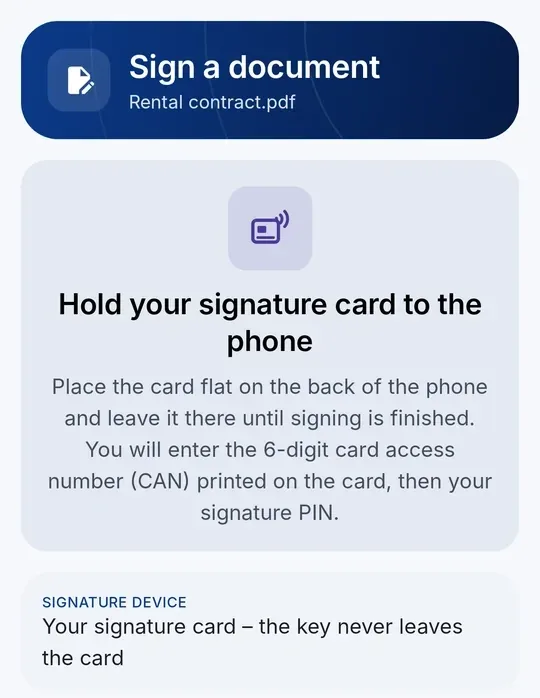
Instead of the CodeB signing service you can sign with your own signature card over NFC – the Maltese eID or a Maltese residence card, a D-Trust Card 5, a German health professional card (HBA) or a German electronic health card (eGK). No browser and no account are needed: the card makes the signature, and the key never leaves the card.
Overview of both ways to sign – your signature card or the CodeB signing service, chosen for every signature: How signing works.
- On the home screen tap Sign, then Select document and pick a PDF on your phone.
- Check the document, then tap Sign with signature card.
- Enter the 6-digit card access number (CAN) printed on the card. The app offers the last number that worked.
- Hold the card flat against the back of your phone and leave it there until signing is finished.
- Enter your signature PIN. The card signs the document, and the app adds a trusted timestamp.
- You see “Document signed”, with the card used and whether its certificate states a qualified electronic signature. Tap Save to phone or Share.
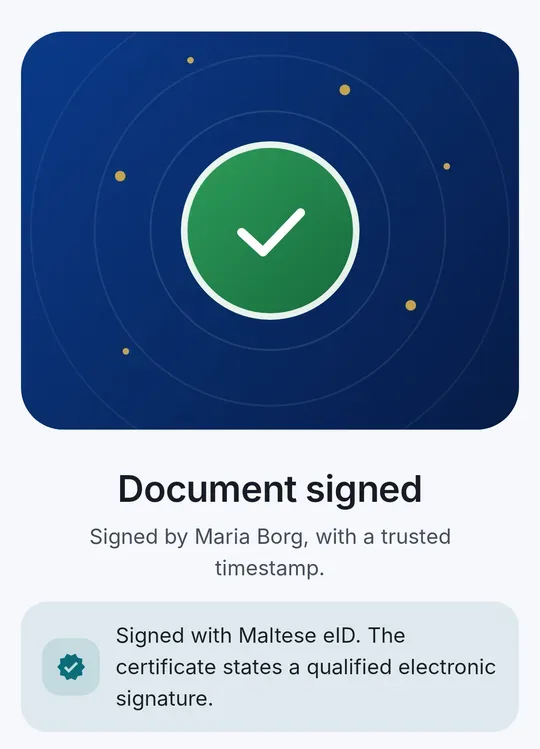
A wrong PIN is never retried by the app: you see how many tries are left, check the PIN and hold the card to the phone again.
If the card access number does not match the card, the app asks for it again – then take the card away and hold it to the phone again. A wrong CAN uses up nothing.
If the card is moved away too early, nothing is signed – just hold it to the phone again.
If a website asks for a qualified electronic signature, only a card with a qualified signature certificate is used.
A blocked PIN, or a card that still has its transport PIN, is explained before anything is sent. Maltese eID PINs are reset by Identity Malta.
The document stays on your phone. Only for the trusted timestamp is a fingerprint (hash) of the signature sent to the CodeB timestamp service.
The app shows what the card’s certificate states; CodeB Wallet itself is not certified.
History
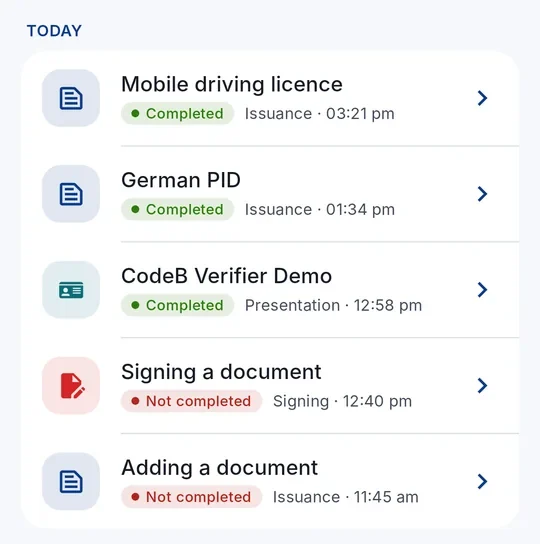
Tap History in the bar at the bottom of the screen to see everything you added, shared and signed. Tap an entry to see the details.
The history is kept only on your phone. It is not sent anywhere.
Keeping your documents up to date
- 1Status checkedThe wallet checks your documents’ status automatically
- 2Revoked? You see itIf an issuer revoked a document, the wallet shows it
- 3Renewed in timeWhere the issuer supports it, documents renew before they expire
CodeB Wallet checks the status of your documents automatically. If an issuer has revoked a document, the wallet shows it.
Where the issuer supports it, the wallet can renew your documents automatically before they expire, so they stay valid.
Menu and PIN
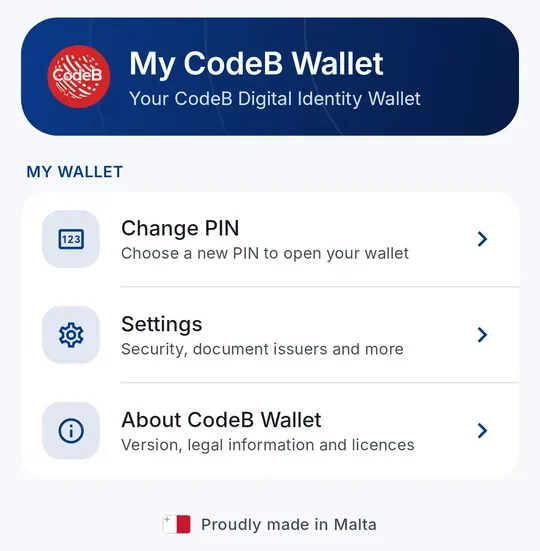
Tap the three lines at the top left of the home screen to open “My CodeB Wallet”. There you can:
- Change PIN – enter your current PIN, then the new one twice.
- Settings – see below.
- One-time codes – sign-in codes for websites with two-step sign-in (see below).
- Pseudonyms (passkeys) – sign in to websites without a password or your name (see the chapter above).
- About CodeB Wallet – version, legal information and licences.
One-time codes (two-step sign-in)
Full guide: One-time codes for two-step sign-in (authenticator)
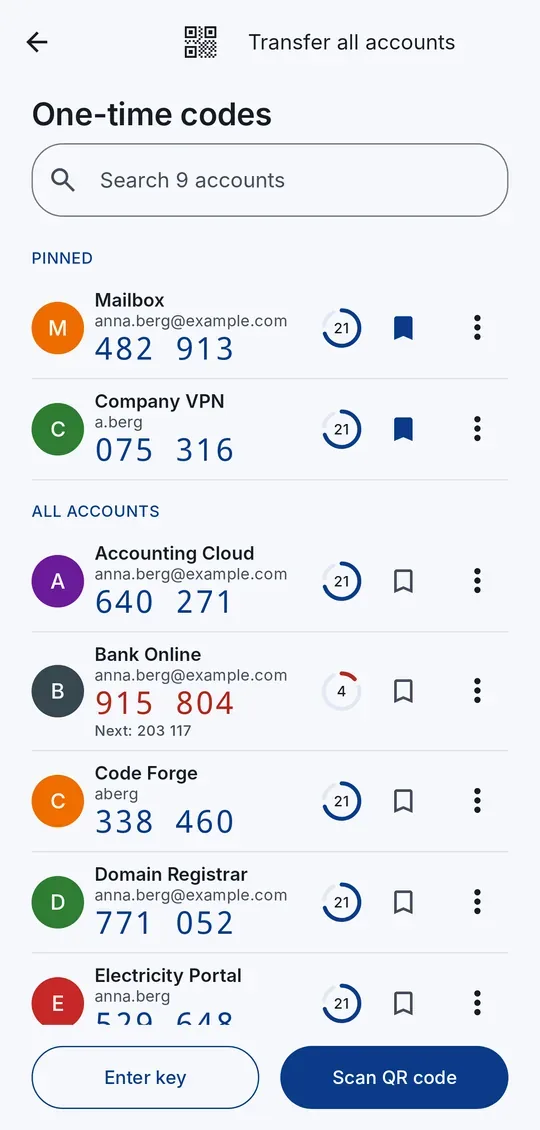
Many websites ask for a six-digit code from an authenticator app when you sign in (two-step sign-in, also called two-factor authentication or 2FA; TOTP). CodeB Wallet has one built in: open the menu and tap One-time codes. The codes are made on your phone, also without internet, and are kept apart from your documents.
- On the website, turn on two-step sign-in (often called “authenticator app” or “2FA”). It shows a QR code.
- In CodeB Wallet open the menu → One-time codes → Scan QR code and scan it. No QR code? Tap Enter key and type the key the website shows.
- Type the six-digit code shown in CodeB Wallet on the website to finish. From now on, tap an account to copy its current code – it is removed from the clipboard after 30 seconds.
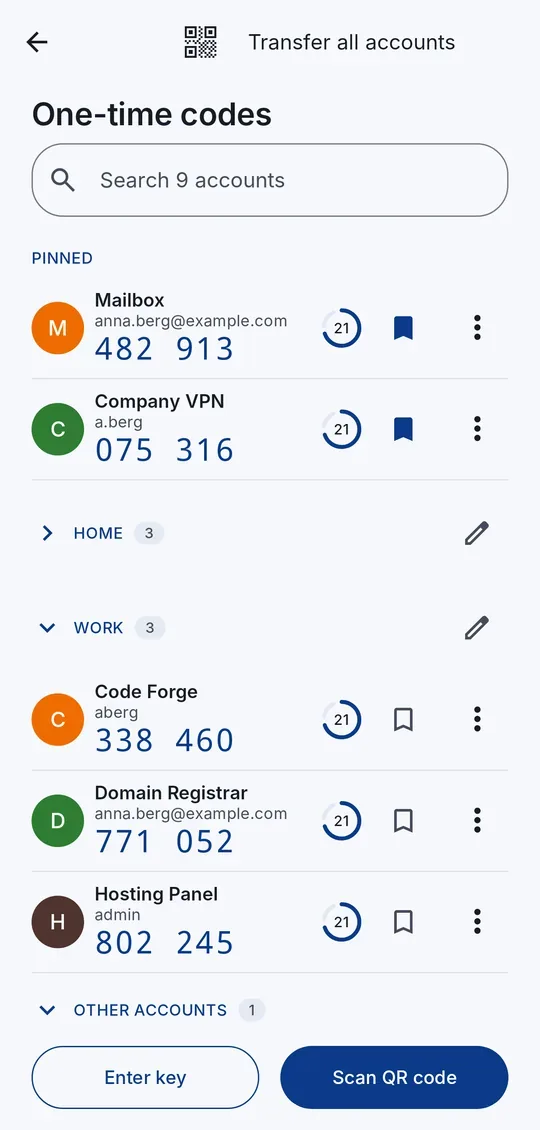
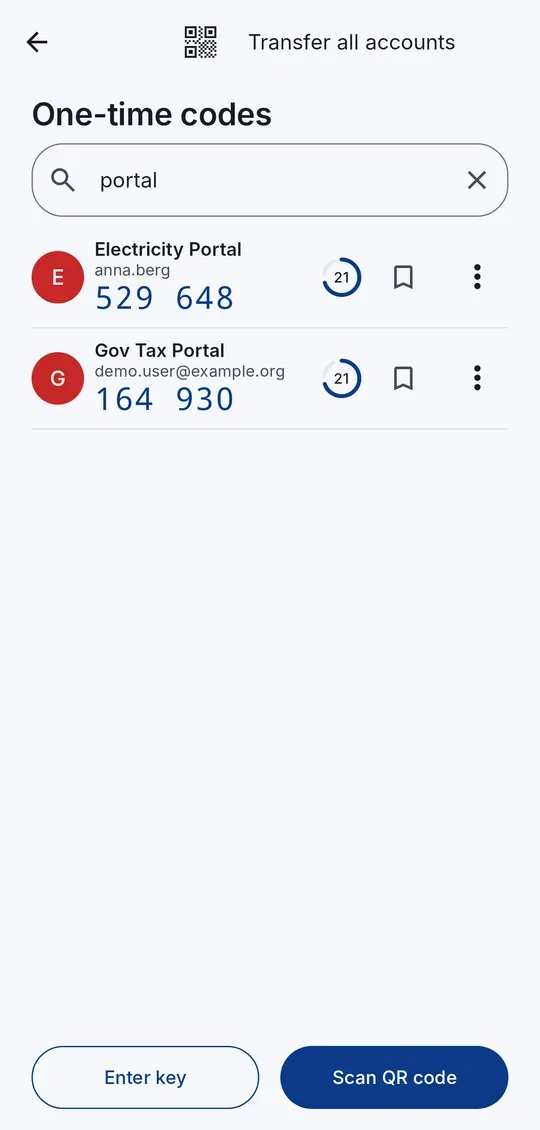
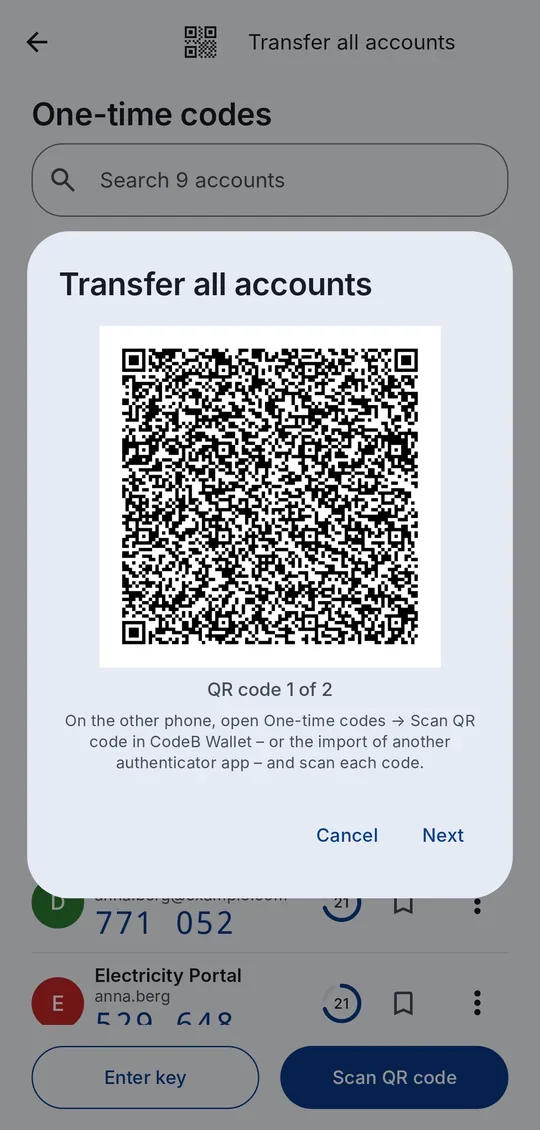
Groups for long lists. Put accounts into groups such as Work or Family: tap the three dots → Move to a group, or choose a group when you enter a key. Groups appear A–Z below the pinned accounts and open or close with a tap – the app remembers which ones you closed. The pencil next to a group renames it or removes it (its accounts stay). The search looks through all groups.
Made for long lists. Pin the accounts you use most to the top (bookmark symbol), the rest are sorted A–Z by service. From six accounts a search field appears. In the last five seconds of a code the next one is already shown, so you never type a code that is about to expire.
Move codes to another phone. Tap Transfer all accounts at the top: CodeB Wallet shows the accounts as QR codes, several per code. On the other phone scan each code in CodeB Wallet (One-time codes → Scan QR code) or with the import of another authenticator app. A single account: hold its row or tap ⋮ → Show as QR code. The other way round works too: scan the transfer QR codes of another authenticator app here.
Links. A tapped “add to authenticator” link (otpauth://) opens CodeB Wallet after your PIN; the app always shows which accounts would be added and asks first. On Android, myeuid.app/open/authenticator opens the one-time codes directly.
In the backup. “Back up to a file” includes your one-time code accounts, protected by the backup password; when restoring you choose whether to add them.
The QR codes of an account contain its secret key – anyone who scans them can create your codes. Show them only to scan them with your own phone. CodeB Wallet blocks screenshots on this screen. Counter-based codes (HOTP) are not supported.
Settings
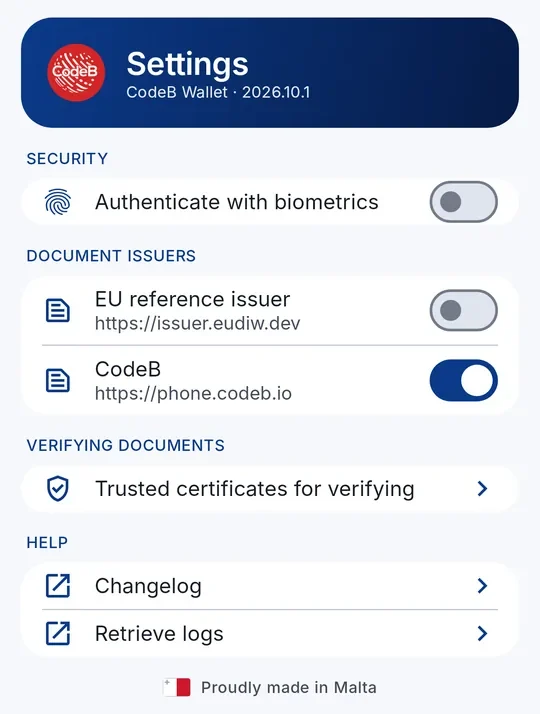
Authenticate with biometrics – unlock the wallet with your fingerprint instead of the PIN.
Document issuers – choose which issuers appear when you add a document. CodeB is switched on; the EU test issuers are switched off because they only issue test documents.
Trusted certificates for verifying – which issuer certificates CodeB Wallet trusts when you check someone else’s ID. CodeB’s own issuer certificate is built in; you can import further certificates.
Back up to a file – saves a password-protected file with the list of your documents, who issued them and your history (none of the data inside the documents and no document keys; if you use one-time codes, their accounts are included) where you choose: on the phone, an SD card or a cloud drive. With “Keep this file up to date” it is updated after every change.
Restore from a backup – on a new phone: choose the file, enter its password, then choose whether to restore the history and which documents to add again. Each issuer issues the document again to the new phone, the PID first. “Continue restoring” shows what is left. Documents from another wallet that are not tied to a phone come back directly and are listed under Documents from a backup.
Offer my documents to websites and apps – on by default. When a website or app asks for a document through Android’s Digital Credentials API, Android can offer yours; nothing is shared without your approval. Switch it off and Android no longer offers your documents.
Delete wallet – removes all documents, the history, your settings and all keys from this phone. You confirm with your wallet PIN; after too many wrong PINs you have to wait. The app then closes; when you open it again it starts as new. Your accounts with issuers and signing services are not deleted.
Changelog – what is new in each version (opens this website).
Retrieve logs – creates a technical log file you can send to us if something does not work.
Links that open the app
- 1Tap a linkIn an e-mail, a chat, on a website or as a QR code
- 2CodeB Wallet opensUnlock with your PIN – a fresh install asks you to set one first
- 3The right screenAccount, signing, scanner, verify or Settings
These links open a place in CodeB Wallet directly – handy in e-mails, chats, on a website or as a QR code. They work on an Android phone with CodeB Wallet 2026.10.27 or later; on a freshly installed app they open after you have set up your PIN. Without the app, the link shows how to get it. The links carry no data and never skip your PIN.
The links:
Create a free CodeB account – myeuid.app/open/account
Sign a PDF – myeuid.app/open/sign
Scan a signing QR code – myeuid.app/open/sign-qr
Scan a QR code to sign in or share – myeuid.app/open/scan
Add a document – myeuid.app/open/add-document
Check someone’s ID – myeuid.app/open/verify
Settings – myeuid.app/open/settings
Your CodeB account – myeuid.app/open/codeb-account
Your data and your safety
- 1Stays on your phoneDocuments, PIN, history – protected by the phone’s secure hardware
- 2Only with your OKYou see who asks for what and approve each sharing
- 3NeverNo advertising, no tracking, no analytics
Your documents and your history are stored only on your phone, protected by your PIN or biometrics. The keys are kept in the phone’s secure hardware.
Nothing is shared without your consent. Before anything leaves your phone, you see exactly what is asked for and who is asking.
When you sign with your own signature card, the key stays on the card. Your PIN is never stored; the card access number (CAN) is kept encrypted on your phone only to offer it again.
CodeB Wallet contains no advertising, no tracking and no analytics.
To remove everything from this phone at once, use Settings → Delete wallet.
If you lose your phone, contact the issuer of your documents so they can cancel (revoke) them. You can then add them again on your new phone.
Problems and help
“Issuance blocked” – the wallet could not confirm that the issuer is genuine, so it stopped for your protection. Try again later or contact the issuer.
Showing in person does not connect – check that Bluetooth is switched on on both phones and that they are close to each other.
“Something went wrong” – the screen shows the reason. If it does not help, go to Settings → Retrieve logs and send the file to info@aloaha.com with a short description.
Nothing happens when I hold my ID card to the phone – check that NFC is switched on, remove a thick case and hold the document still against the middle of the phone’s back. If it still does not work, tap Send diagnostic log on the screen and send the log to us.
“The card access number is not correct” – check the 6-digit card access number on the front of your ID card, or use the machine-readable zone instead.