CodeB Wallet
Create a free CodeB account
This link opens CodeB Wallet on your Android phone.
Open this page on your Android phone – the link only works there.
Don’t have CodeB Wallet yet? Three steps
- Install CodeB Wallet from Google Play.
- Open the app and set your wallet PIN.
- Come back to this page and tap “Open CodeB Wallet” – the app opens the right screen.
Closed beta: open only to invited testers signed in to Google Play with the e-mail address on our tester list. To join the beta, contact us at info@aloaha.com.
 Scan to get the appPoint your Android phone’s camera at the code to open CodeB Wallet on Google Play (invited testers).
Your free CodeB account – opened with your passport or ID card
Signing your own PDFs with the CodeB signing service and the test PID and Photo ID need an account on phone.codeb.io. You open it right in the app, in about two minutes: hold your passport or ID card to your phone, confirm your e-mail address – done. No form, no captcha, no waiting for approval.
- Sign 5 of your own PDFs a day – documents others ask you to sign do not count
- Add the test PID and Photo ID straight to your wallet
- Works on a freshly installed app – no other card needed
- Any passport or ID card with a chip, from any country
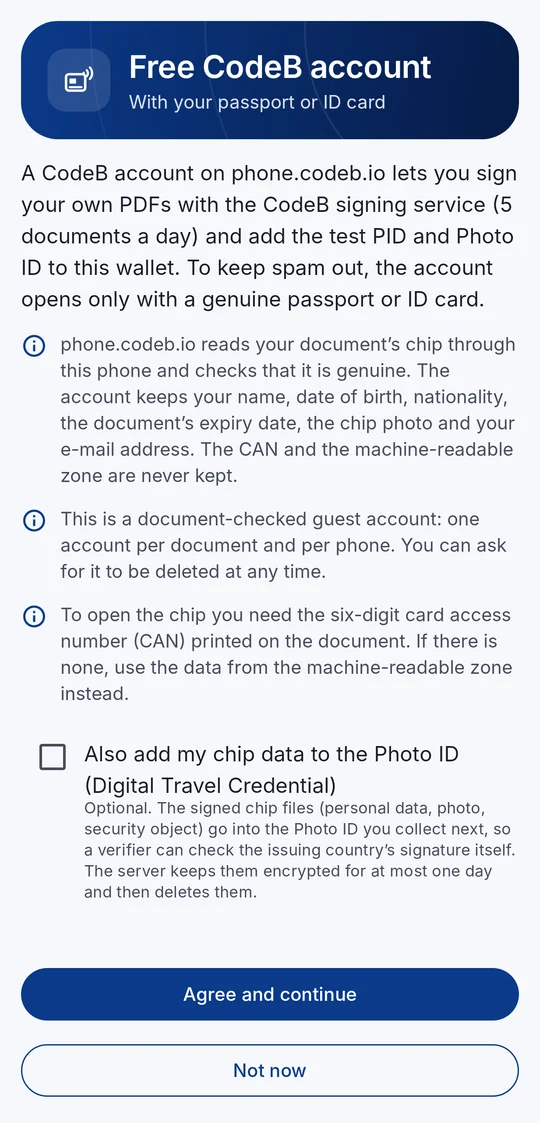
1Read what is checked and kept 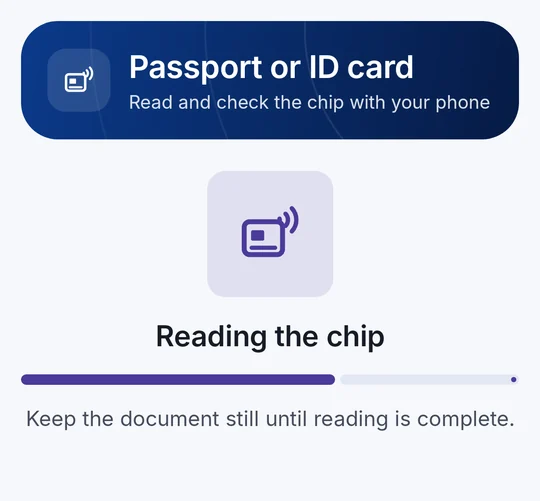
2Hold your passport or ID card to the phone 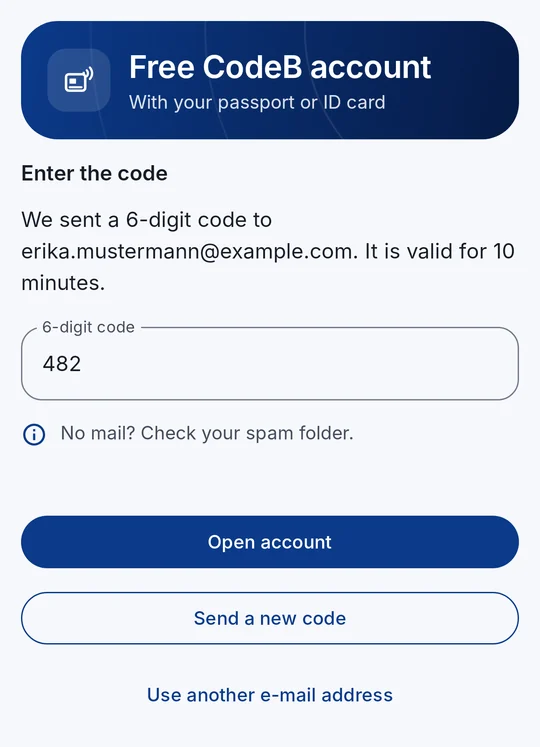
3Type the code from the mail 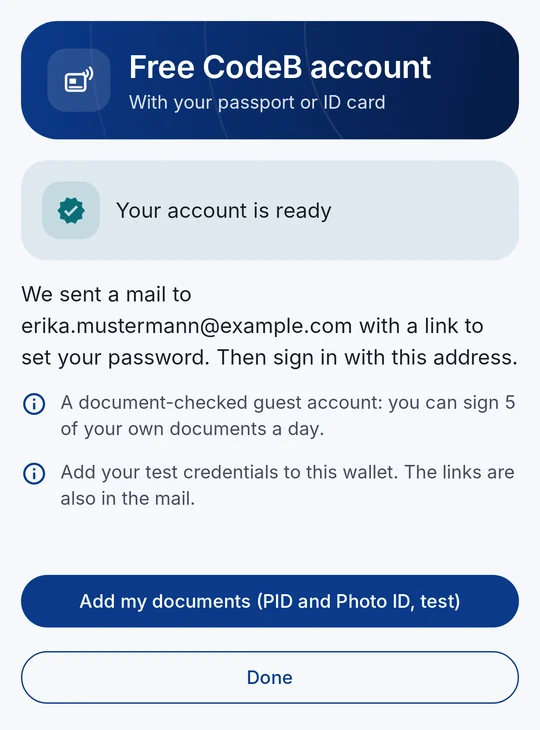
4Account ready – add the test PID and Photo ID
How to open your free account
- On the home screen tap the three lines at the top left, then Settings, and tap Create a free CodeB account in the section “CodeB account” – or tap the link myeuid.app/open/account on your phone. You need no other card in your wallet.
- Read what is checked and kept, then tap Agree and continue.
- ID card: tap Enter the card access number (CAN) and type the 6 digits printed on the front of the card. Passport, or no CAN on your card: tap No CAN? Use the machine-readable zone and hold the camera over the two or three lines of letters and numbers at the bottom of the photo page.
- Hold the document flat on the back of your phone, near the camera, and do not move it until the bar is full – a few seconds. If nothing happens, move the document slowly over the back of the phone and remove a thick case.
- Your document is genuine: type your e-mail address and tap Send code.
- Open the mail from phone.codeb.io, type the 6-digit code and tap Open account.
- Your account is ready. Tap Add my documents (PID and Photo ID, test) and then Accept: your test PID is added. Back on the home screen the Photo ID follows by itself – tap Accept again.
- Last step: open the mail and set your password with the link. You need it to sign in on phone.codeb.io.
Why a passport or ID card?
To keep spam and bots out, phone.codeb.io reads the chip of your document through your phone and checks that it is genuine – and that the app is the genuine CodeB Wallet on a genuine phone. One account per document and per phone. The CAN, the machine-readable zone and the raw chip data are never kept.
It is a document-checked guest account – not an official identity and not a qualified signature.
What is kept
Your name, date of birth, nationality, the document’s expiry date, the chip photo and your e-mail address. The CAN, the machine-readable zone and the raw chip data are never kept.
You can have the account deleted at any time. In the app, Settings → “CodeB account” opens your account on phone.codeb.io.
How it works Step-by-step manual
What else the app can do
CodeB Wallet
Kostenloses CodeB-Konto anlegen
Dieser Link öffnet die CodeB Wallet auf Ihrem Android-Telefon.
Öffnen Sie diese Seite auf Ihrem Android-Telefon – der Link funktioniert nur dort.
Noch keine CodeB Wallet? In drei Schritten
- Installieren Sie die CodeB Wallet aus Google Play.
- Öffnen Sie die App und legen Sie Ihre Wallet-PIN fest.
- Kommen Sie zurück zu dieser Seite und tippen Sie auf „CodeB Wallet öffnen“ – die App öffnet direkt den richtigen Bildschirm.
Geschlossene Beta: nur für eingeladene Tester, die bei Google Play mit der E-Mail-Adresse auf unserer Testerliste angemeldet sind. Wenn Sie an der Beta teilnehmen möchten, schreiben Sie uns an info@aloaha.com.
Scannen und App holenHalten Sie die Kamera Ihres Android-Telefons auf den Code, um CodeB Wallet in Google Play zu öffnen (für eingeladene Tester).
Ihr kostenloses CodeB-Konto – eröffnet mit Pass oder Ausweis
Für das Signieren eigener PDFs mit dem CodeB-Signaturdienst und für die Test-PID und die Photo ID brauchen Sie ein Konto auf phone.codeb.io. Sie eröffnen es direkt in der App, in etwa zwei Minuten: Pass oder Ausweis ans Telefon halten, E-Mail-Adresse bestätigen – fertig. Kein Formular, kein Captcha, kein Warten auf eine Freigabe.
- 5 eigene PDFs am Tag signieren – Dokumente, die andere Sie zu signieren bitten, zählen nicht mit
- Test-PID und Photo ID direkt in Ihre Wallet
- Funktioniert in einer frisch installierten App – keine andere Karte nötig
- Jeder Pass oder Ausweis mit Chip, aus jedem Land
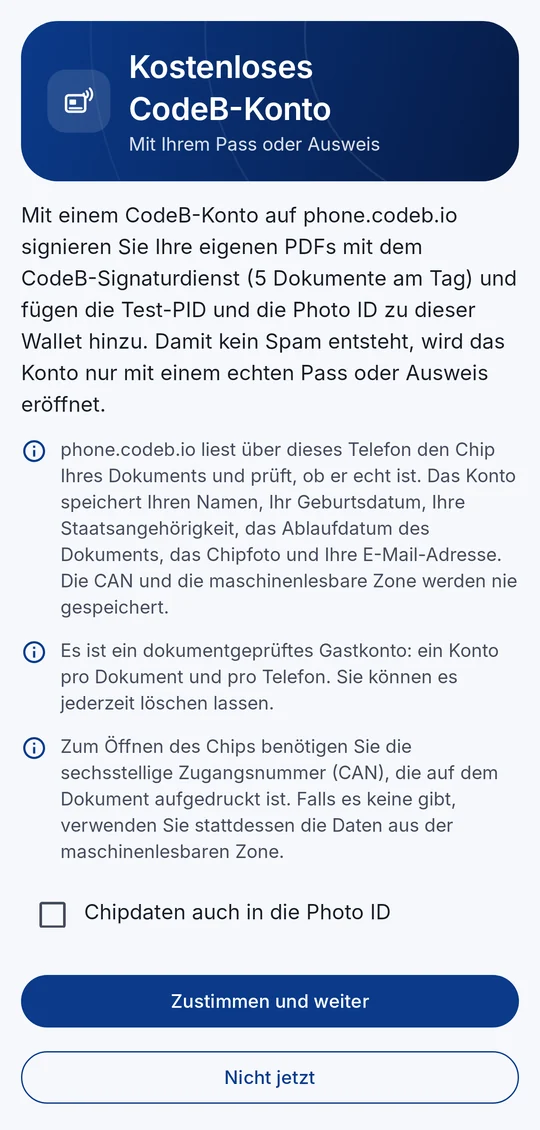
1Lesen, was geprüft und gespeichert wird 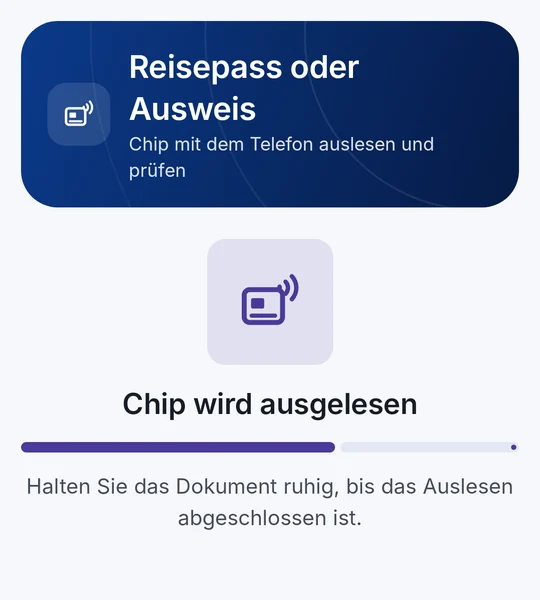
2Pass oder Ausweis ans Telefon halten 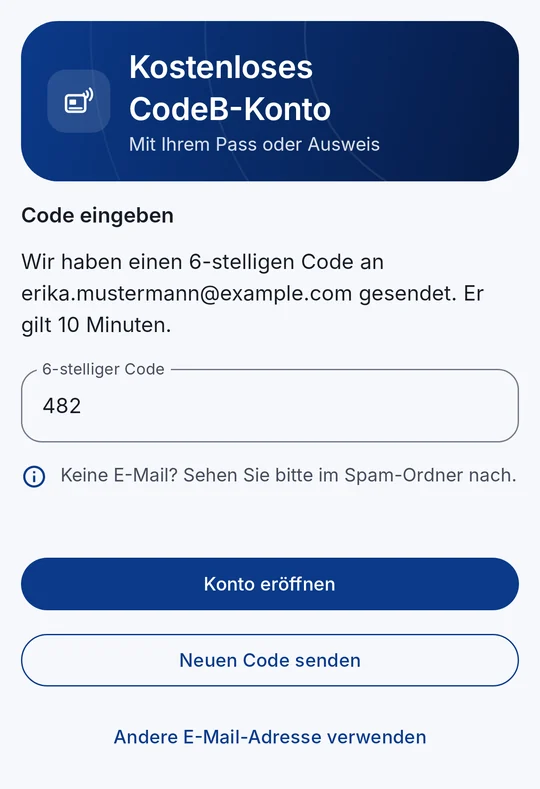
3Code aus der E-Mail eingeben 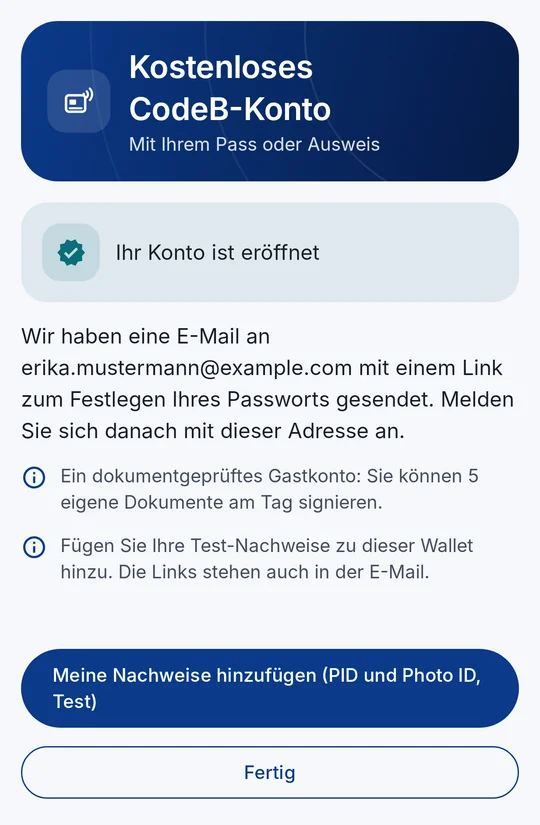
4Konto eröffnet – Test-PID und Photo ID hinzufügen
So eröffnen Sie Ihr kostenloses Konto
- Tippen Sie auf dem Startbildschirm oben links auf die drei Striche, dann auf Einstellungen, und tippen Sie im Abschnitt „CodeB-Konto“ auf Kostenloses CodeB-Konto anlegen – oder tippen Sie auf dem Telefon auf den Link myeuid.app/open/account. Sie brauchen keine andere Karte in Ihrer Wallet.
- Lesen Sie, was geprüft und gespeichert wird, und tippen Sie auf Zustimmen und weiter.
- Personalausweis: Tippen Sie auf Zugangsnummer (CAN) eingeben und geben Sie die 6 Ziffern vorn auf der Karte ein. Pass oder keine CAN: Tippen Sie auf Keine CAN? Maschinenlesbare Zone verwenden und halten Sie die Kamera über die zwei oder drei Zeilen aus Buchstaben und Zahlen unten auf der Bildseite.
- Legen Sie das Dokument flach an die Rückseite des Telefons, nahe der Kamera, und bewegen Sie es nicht, bis der Balken voll ist – ein paar Sekunden. Passiert nichts, schieben Sie das Dokument langsam über die Rückseite und nehmen Sie eine dicke Hülle ab.
- Ihr Dokument ist echt: Geben Sie Ihre E-Mail-Adresse ein und tippen Sie auf Code senden.
- Öffnen Sie die E-Mail von phone.codeb.io, geben Sie den 6-stelligen Code ein und tippen Sie auf Konto eröffnen.
- Ihr Konto ist bereit. Tippen Sie auf Meine Nachweise hinzufügen (PID und Photo ID, Test) und dann auf Annehmen: Ihre Test-PID wird hinzugefügt. Zurück auf dem Startbildschirm folgt die Photo ID von selbst – tippen Sie wieder auf Annehmen.
- Letzter Schritt: Öffnen Sie die E-Mail und legen Sie mit dem Link Ihr Passwort fest. Sie brauchen es für die Anmeldung auf phone.codeb.io.
Warum Pass oder Ausweis?
Damit kein Spam und keine Bots entstehen, liest phone.codeb.io über Ihr Telefon den Chip Ihres Dokuments und prüft, ob er echt ist – und ob die echte CodeB Wallet auf einem echten Telefon läuft. Ein Konto pro Dokument und pro Telefon. Die CAN, die maschinenlesbare Zone und die Rohdaten des Chips werden nie gespeichert.
Es ist ein dokumentgeprüftes Gastkonto – keine amtliche Identität und keine qualifizierte Signatur.
Was gespeichert wird
Ihr Name, Geburtsdatum, Staatsangehörigkeit, das Ablaufdatum des Dokuments, das Chip-Foto und Ihre E-Mail-Adresse. Die CAN, die maschinenlesbare Zone und die Rohdaten des Chips werden nie gespeichert.
Sie können das Konto jederzeit löschen lassen. In der App öffnet Einstellungen → „CodeB-Konto“ Ihr Konto auf phone.codeb.io.
So funktioniert es Anleitung Schritt für Schritt
Was die App sonst kann
CodeB Wallet
Créer un compte CodeB gratuit
Ce lien ouvre CodeB Wallet sur votre téléphone Android.
Ouvrez cette page sur votre téléphone Android – le lien ne fonctionne que là.
Vous n’avez pas encore CodeB Wallet ? Trois étapes
- Installez CodeB Wallet depuis Google Play.
- Ouvrez l’application et définissez le code PIN de votre portefeuille.
- Revenez sur cette page et touchez « Ouvrir CodeB Wallet » – l’application ouvre le bon écran.
Bêta fermée : ouverte uniquement aux testeurs invités connectés à Google Play avec l’adresse e-mail figurant sur notre liste de testeurs. Pour rejoindre la bêta, contactez-nous à info@aloaha.com.
Scannez pour obtenir l’applicationPointez l’appareil photo de votre téléphone Android vers le code pour ouvrir CodeB Wallet sur Google Play (testeurs invités).
Votre compte CodeB gratuit – ouvert avec votre passeport ou votre carte d’identité
Signer vos propres PDF avec le service de signature CodeB ainsi que le PID de test et la Photo ID nécessitent un compte sur phone.codeb.io. Vous l’ouvrez directement dans l’application, en deux minutes environ : approchez votre passeport ou votre carte d’identité de votre téléphone, confirmez votre adresse e-mail – c’est fait. Pas de formulaire, pas de captcha, pas d’attente de validation.
- Signez 5 de vos propres PDF par jour – les documents que d’autres vous demandent de signer ne comptent pas
- Ajoutez le PID de test et la Photo ID directement à votre portefeuille
- Fonctionne sur une application fraîchement installée – aucune autre carte nécessaire
- Tout passeport ou carte d’identité à puce, de n’importe quel pays
1Lisez ce qui est vérifié et conservé 2Approchez votre passeport ou votre carte d’identité du téléphone 3Saisissez le code reçu par e-mail 4Compte prêt – ajoutez le PID de test et la Photo ID
Comment ouvrir votre compte gratuit
- Sur l’écran d’accueil, touchez les trois traits en haut à gauche, puis Paramètres, et touchez Créer un compte CodeB gratuit dans la section « Compte CodeB » – ou touchez le lien myeuid.app/open/account sur votre téléphone. Aucune autre carte n’est nécessaire dans votre portefeuille.
- Lisez ce qui est contrôlé et conservé, puis touchez Accepter et continuer.
- Carte d’identité : touchez Saisir le numéro d’accès à la carte (CAN) et tapez les 6 chiffres imprimés au recto de la carte. Passeport, ou pas de CAN sur votre carte : touchez Pas de CAN ? Utiliser la zone de lecture automatique et placez l’appareil photo au-dessus des deux ou trois lignes de lettres et de chiffres en bas de la page photo.
- Posez le document à plat sur le dos de votre téléphone, près de l’appareil photo, et ne le bougez pas tant que la barre n’est pas pleine – quelques secondes. Si rien ne se passe, déplacez lentement le document sur le dos du téléphone et retirez une coque épaisse.
- Votre document est authentique : saisissez votre adresse e-mail et touchez Envoyer le code.
- Ouvrez le message de phone.codeb.io, saisissez le code à 6 chiffres et touchez Ouvrir le compte.
- Votre compte est prêt. Touchez Ajouter mes documents (PID et Photo ID, test) puis Accepter : votre PID de test est ajouté. De retour sur l’écran d’accueil, le Photo ID suit de lui-même – touchez de nouveau Accepter.
- Dernière étape : ouvrez le message et définissez votre mot de passe à l’aide du lien. Vous en avez besoin pour vous connecter sur phone.codeb.io.
Pourquoi un passeport ou une carte d’identité ?
Pour tenir à l’écart le spam et les robots, phone.codeb.io lit la puce de votre document via votre téléphone et vérifie qu’il est authentique – et que l’application est le véritable CodeB Wallet sur un véritable téléphone. Un compte par document et par téléphone. Le CAN, la zone de lecture automatique et les données brutes de la puce ne sont jamais conservés.
Il s’agit d’un compte invité avec document vérifié – pas d’une identité officielle ni d’une signature qualifiée.
Ce qui est conservé
Votre nom, votre date de naissance, votre nationalité, la date d’expiration du document, la photo de la puce et votre adresse e-mail. Le CAN, la zone de lecture automatique et les données brutes de la puce ne sont jamais conservés.
Vous pouvez faire supprimer le compte à tout moment. Dans l’application, Paramètres → « Compte CodeB » ouvre votre compte sur phone.codeb.io.
Comment ça marche Manuel pas à pas
Ce que l’application sait faire d’autre
CodeB Wallet
Oħloq kont CodeB b’xejn
Dan il-link jiftaħ CodeB Wallet fuq il-mowbajl Android tiegħek.
Iftaħ din il-paġna fuq il-mowbajl Android tiegħek – il-link jaħdem hemm biss.
Għad m’għandekx CodeB Wallet? Tliet passi
- Installa CodeB Wallet minn Google Play.
- Iftaħ l-app u ssettja l-PIN tal-wallet.
- Erġa’ lura f’din il-paġna u agħfas “Iftaħ CodeB Wallet” – l-app tiftaħ dritt l-iskrin it-tajjeb.
Beta magħluqa: miftuħa biss għal testers mistiedna li daħlu f’Google Play bl-indirizz tal-email li għandna fil-lista tat-testers tagħna. Biex tissieħeb fil-beta, ikkuntattjana fuq info@aloaha.com.
Skennja u ġib l-appIpponta l-kamera tal-mowbajl Android tiegħek lejn il-kodiċi biex tiftaħ CodeB Wallet fuq Google Play (għal testers mistiedna).
Il-kont CodeB tiegħek b’xejn – miftuħ bil-passaport jew bil-karta tal-identità
Biex tiffirma l-PDFs tiegħek bis-servizz tal-firma ta’ CodeB u biex ikollok il-PID tat-test u l-Photo ID, għandek bżonn kont fuq phone.codeb.io. Tiftħu direttament fl-app, f’madwar żewġ minuti: żomm il-passaport jew il-karta tal-identità mal-mowbajl, ikkonferma l-indirizz tal-email – lest. Ebda formola, ebda captcha, ebda stennija għall-approvazzjoni.
- Iffirma 5 PDFs tiegħek kuljum – id-dokumenti li ħaddieħor jitolbok tiffirma ma jgħoddux
- Żid il-PID tat-test u l-Photo ID direttament fil-wallet
- Jaħdem fuq app għadha kif ġiet installata – m’għandek bżonn l-ebda karta oħra
- Kull passaport jew karta tal-identità b’ċippa, minn kull pajjiż
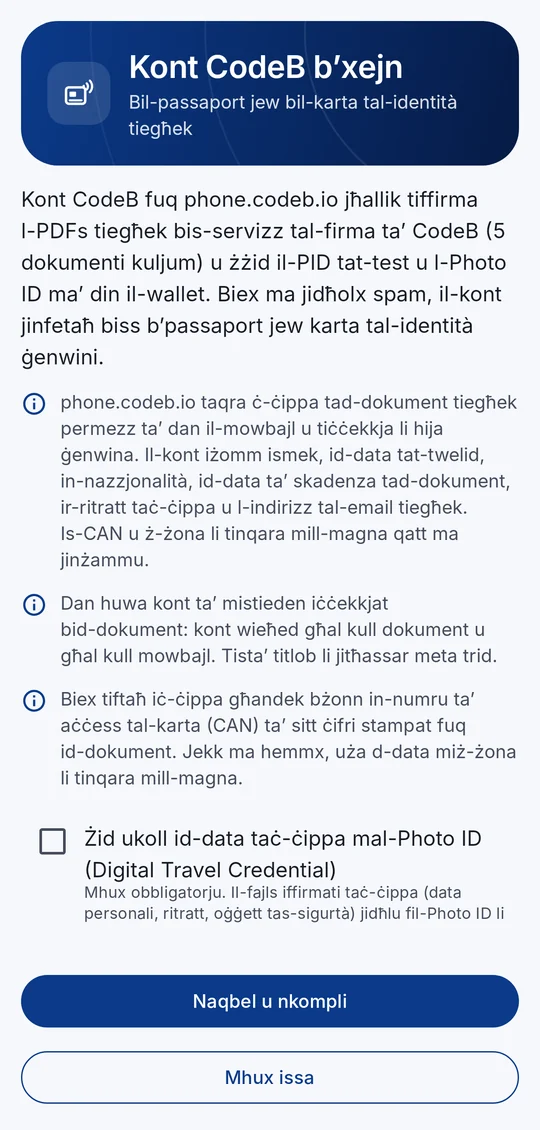
1Aqra x’jiġi ċċekkjat u x’jinżamm 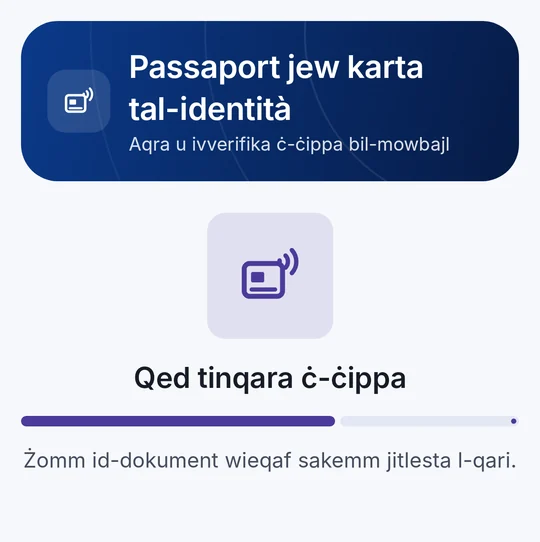
2Żomm il-passaport jew il-karta mal-mowbajl 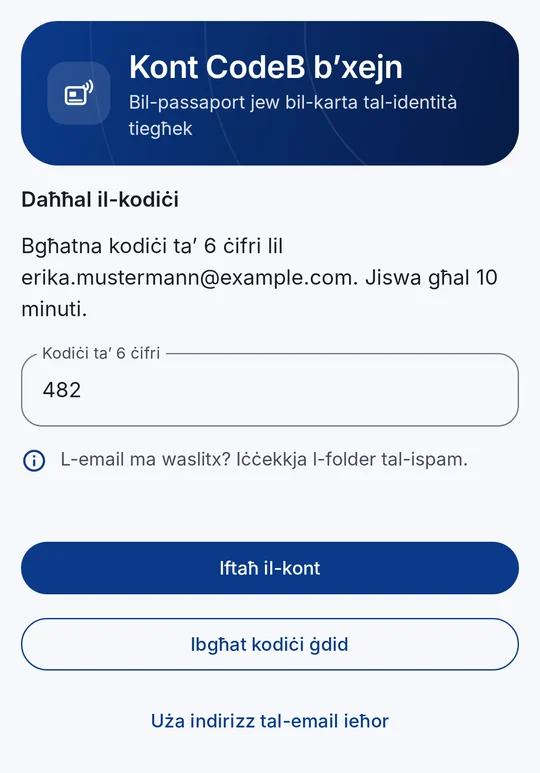
3Ikteb il-kodiċi mill-email 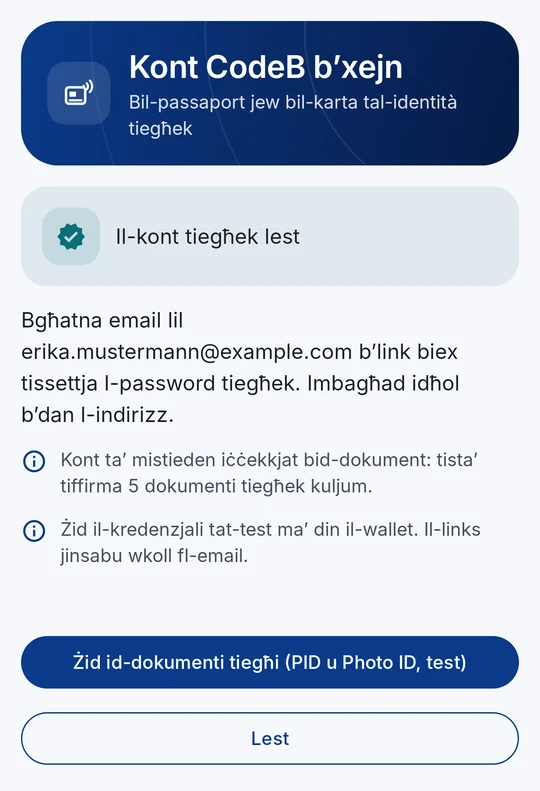
4Il-kont lest – żid il-PID tat-test u l-Photo ID
Kif tiftaħ il-kont tiegħek b’xejn
- Fl-iskrin ewlieni agħfas it-tliet linji fuq ix-xellug, imbagħad Settings, u agħfas Oħloq kont CodeB b’xejn fit-taqsima “Kont CodeB” – jew agħfas il-link myeuid.app/open/account fuq il-mowbajl. M’għandek bżonn l-ebda karta oħra fil-wallet.
- Aqra x’jiġi ċċekkjat u x’jinżamm, imbagħad agħfas Naqbel u nkompli.
- Karta tal-identità: agħfas Daħħal in-numru ta’ aċċess tal-karta (CAN) u ikteb is-6 ċifri stampati fuq quddiem tal-karta. Passaport, jew m’hemmx CAN: agħfas M’hemmx CAN? Uża ż-żona li tinqara mill-magna u żomm il-kamera fuq iż-żewġ jew tliet linji ta’ ittri u numri fil-qiegħ tal-paġna tar-ritratt.
- Żomm id-dokument ċatt fuq wara tal-mowbajl, ħdejn il-kamera, u tħarrkux sakemm il-bar jimtela – ftit sekondi. Jekk ma jiġri xejn, għaddi d-dokument bil-mod fuq wara tal-mowbajl u neħħi kaxxa ħoxna.
- Id-dokument tiegħek huwa ġenwin: ikteb l-indirizz tal-email tiegħek u agħfas Ibgħat il-kodiċi.
- Iftaħ l-email minn phone.codeb.io, ikteb il-kodiċi ta’ 6 ċifri u agħfas Iftaħ il-kont.
- Il-kont tiegħek lest. Agħfas Żid id-dokumenti tiegħi (PID u Photo ID, test) u mbagħad Aċċetta: il-PID tat-test tiżdied. Lura fl-iskrin ewlieni l-Photo ID tiġi waħedha – erġa’ agħfas Aċċetta.
- L-aħħar pass: iftaħ l-email u ssettja l-password tiegħek bil-link. Għandek bżonnha biex tidħol fuq phone.codeb.io.
Għaliex passaport jew karta tal-identità?
Biex ma jidħolx spam jew bots, phone.codeb.io taqra ċ-ċippa tad-dokument tiegħek permezz tal-mowbajl u tiċċekkja li hija ġenwina – u li l-app hija l-CodeB Wallet ġenwina fuq mowbajl ġenwin. Kont wieħed għal kull dokument u għal kull mowbajl. Is-CAN, iż-żona li tinqara mill-magna u d-data mhux ipproċessata taċ-ċippa qatt ma jinżammu.
Huwa kont ta’ mistieden iċċekkjat bid-dokument – mhux identità uffiċjali u mhux firma kwalifikata.
X’jinżamm
Ismek, id-data tat-twelid, in-nazzjonalità, id-data ta’ skadenza tad-dokument, ir-ritratt taċ-ċippa u l-indirizz tal-email tiegħek. Is-CAN, iż-żona li tinqara mill-magna u d-data mhux ipproċessata taċ-ċippa qatt ma jinżammu.
Tista’ titlob li l-kont jitħassar fi kwalunkwe ħin. Fl-app, Issettjar → “Kont CodeB” jiftaħ il-kont tiegħek fuq phone.codeb.io.