
AI agents · Approval on the phone · Signing requests
CodeB for Agents – AI agents prepare signing requests, you approve on your phone, and only you sign
An AI assistant can do the paperwork around signatures: upload the PDFs, place the signature boxes, invite the signers in the right order and follow every answer. Before it can do any of that for you, you approve it in CodeB Wallet – compare a short code, confirm with your fingerprint, face or PIN. The agent then may prepare signing requests for one hour. It can never sign: every signature is made by a person in CodeB Wallet, with their own signature card or the CodeB signing service.
- Approve by code + screen lock
- One hour, signing requests only
- Agents can never sign
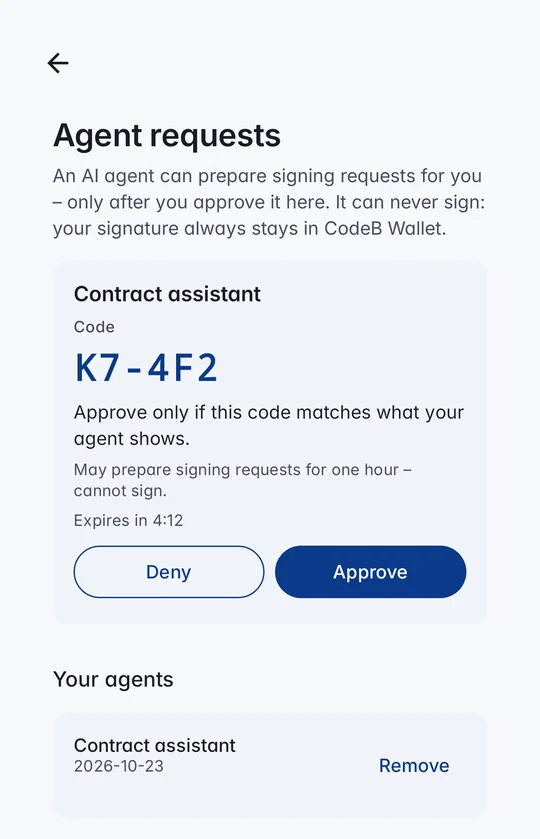
What an agent can do – and what it cannot
It can: prepare signing requests on your CodeB account – upload PDFs, place one signature box per signer, set the order, invite people, follow the status and fetch the signed PDF and its signature check.
It cannot: sign, see your signing keys, use your signature card or act after the hour you approved. Its access is limited to signing requests; every other part of your account stays closed to it. You can remove an agent at any time.
Easy to find for AI apps: CodeB signing is listed in the official MCP Registry – the public directory AI apps and agent tools use to find MCP servers – as io.codeb/signing. Setup for your AI app: AI agents on phone.codeb.io.
How to approve an AI agent
- Connect your AI app or agent to CodeB: many AI apps find CodeB signing in the MCP Registry, or follow the setup on phone.codeb.io. When it wants to work for you, it shows you a short code.
- Open CodeB Wallet, signed in to your CodeB account, and go to Settings → CodeB account → Agent requests. You also get an e-mail with a link to the request.
- Check the agent’s name and compare the code in large type with the one your agent shows. Approve only if both match.
- Tap Approve and confirm with your fingerprint, face or PIN – or tap Deny. A request you do not answer simply expires.
- The agent prepares the signing requests. You and the other signers sign them in CodeB Wallet as usual – with a signature card over NFC or the CodeB signing service.
Built so that a person stays in control
Code comparison: the code on your phone must match the one your agent shows – a request someone else started cannot be confused with yours.
Screen lock for every approval: approving needs your fingerprint, face or phone PIN; denying does not.
Short-lived and narrow: one hour, signing requests only, no refresh. A new hour needs a new approval.
Signing stays human: the signature itself is always made in CodeB Wallet by the signer – PAdES with a trusted timestamp, with the signer’s own card or the CodeB signing service.
Your overview: Your agents lists every agent with access to your account; Remove ends it.
Questions about AI agents and signing
Can an AI agent sign a document for me?
No. An agent can only prepare signing requests – upload PDFs, place signature boxes, invite signers and follow the status. Every signature is made by a person in CodeB Wallet, with their own signature card or the CodeB signing service.
How do I approve an AI agent?
In CodeB Wallet open Settings → CodeB account → Agent requests, compare the code with the one your agent shows, tap Approve and confirm with your fingerprint, face or PIN.
How long can an approved agent work for me?
One hour, and only on signing requests. After that it needs a new approval; you can also remove it earlier under Your agents.
Which AI apps can connect?
Agents connect to CodeB on phone.codeb.io through standard interfaces (OpenID CIBA for the approval, the Model Context Protocol for the tools). Your AI app’s setup tells you whether it supports them.
What if I did not start the request?
Tap Deny – or do nothing; the request expires. Approve only when the code matches the one your own agent shows.
Install the closed beta (Google Play) Closed beta: open only to invited testers signed in to Google Play with the e-mail address on our tester list. To join, request beta access.