
Signing workflow · Signature fields · PAdES
Signature fields – a visible signature in the right place, backed by a real digital signature
Place a signature box for every signer in your PDF, set the order and send it out. Each signer fills their own box from CodeB Wallet – with a signature drawn by finger, the signature image stored in their ID document, or just their name – and the PDF gets a PAdES signature with a trusted timestamp behind it. Works in any PDF reader, no special viewer needed.
- One box per signer, in order
- Drawn, ID image or name
- PAdES with trusted timestamp
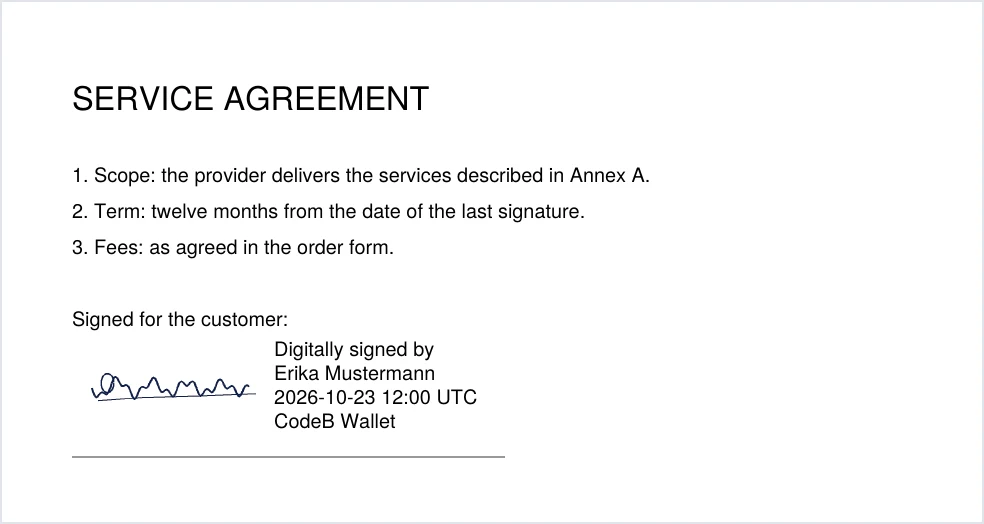
A signature box that every signer fills
A signature field is a box on a page of the PDF that belongs to one signer. You place it where the signature should appear – under “Signed for the customer”, on the last page, next to a date line. When that person signs, their visible signature appears exactly in their box, and the digital signature is bound to that field.
Several signers can sign the same PDF one after another, each in their own box. Every signature is an incremental update, so earlier signatures stay valid and anyone can see who signed which part.
How to send a PDF with signature fields
- Sign in on phone.codeb.io/sign-request – a free guest account is enough – and upload 1–10 PDFs.
- Tap Signature fields next to a PDF, choose the signer and draw a box on the page (or tap once for a standard box). Choose what may appear in it and, if you want, tick The signature must be visible.
- Choose who signs and in which order (you first, if you sign too), then tap Release for signing.
- Each signer gets their turn: an invitation e-mail with a link, or the QR code on the page. Optionally they draw their signature on the web page first.
- In CodeB Wallet the signer checks who asks and every document, then picks what appears in their box and signs – with their signature card over NFC or the CodeB signing service.
- The signed PDF goes back automatically; the next signer is invited. At the end everyone can download the PDF with all signatures.
What can appear in the box
Drawn signature – drawn with the finger in CodeB Wallet, or drawn with mouse or finger on the signing web page before scanning the QR code.
Signature image from an ID document – the signature stored in a mobile driving licence or in the chip of a passport or ID card, if the document has one. CodeB Wallet shows the image and asks for consent first, because it goes to the requester inside the PDF.
Name only – “Digitally signed by”, the name from the signing certificate, date and time (UTC).
The requester decides which of these are allowed and whether the signature must be visible; the signer picks one. Every box also shows the signer’s name, the time and “CodeB Wallet”, so the picture never stands alone.
What makes it different
Real identity behind the signature: signers sign with their own signature card (for example the Maltese eID, a D-Trust card or a German health professional card) or with the CodeB signing service after signing in with password, passkey or their EU Wallet.
Standard PDF signatures: PAdES (ETSI EN 319 142) with a trusted timestamp, checkable in common PDF readers – the proof travels with the file.
Signing happens on the signer’s phone: the PDF is checked against its announced hash and signed in CodeB Wallet; card keys never leave the card.
Everyone sees what was signed: each signer gets exactly their own box; the requester’s server accepts the signed PDF only if the right field was filled and nothing else was changed.
Free to start: a free CodeB account lets you send requests (guest accounts: up to 2 invited signers, full accounts up to 5).
Picture and legal effect
The picture in the box is only the visible appearance. The legal effect comes from the digital signature: an advanced electronic signature (AdES) with the CodeB signing service or a card, and a qualified electronic signature (QES) only with a signature card whose certificate states it. CodeB Wallet itself is not certified.
Questions about signature fields
What is a signature field in a PDF?
A box on a page of the PDF reserved for one signer. When that person signs, their visible signature appears in the box and the digital signature is bound to that field, so everyone sees who signed where.
Can several people sign the same PDF in a set order?
Yes. You place one box per signer and set the order; each signer is invited in turn and signs their own box. Earlier signatures stay valid.
Can I use my handwritten signature?
Yes – draw it with your finger in CodeB Wallet or with mouse or finger on the signing web page. If your mobile driving licence or your passport chip contains a signature image, you can use that instead, after confirming.
Is a drawn signature legally binding?
The legal effect comes from the digital signature behind it (advanced, or qualified with a qualified signature card), not from the picture. The picture shows where and by whom the document was signed.
Which PDF readers show the signature?
The box with the picture shows in every PDF viewer. The digital signature (PAdES with timestamp) can be checked in common PDF readers that show a signature panel.
Install the closed beta (Google Play) Closed beta: open only to invited testers signed in to Google Play with the e-mail address on our tester list. To join, request beta access.