
Cookbook: how we built a web shop with EU wallet log-in, age check and signing
Our demo shop is one static web page – no shop software, no backend of its own. Customers register and log in with the personal ID (PID) in their EU Digital Identity Wallet, pass an age check and sign the order confirmation in CodeB Wallet. This article shows how it fits together, with the code we use, so you can build the same into your own shop.
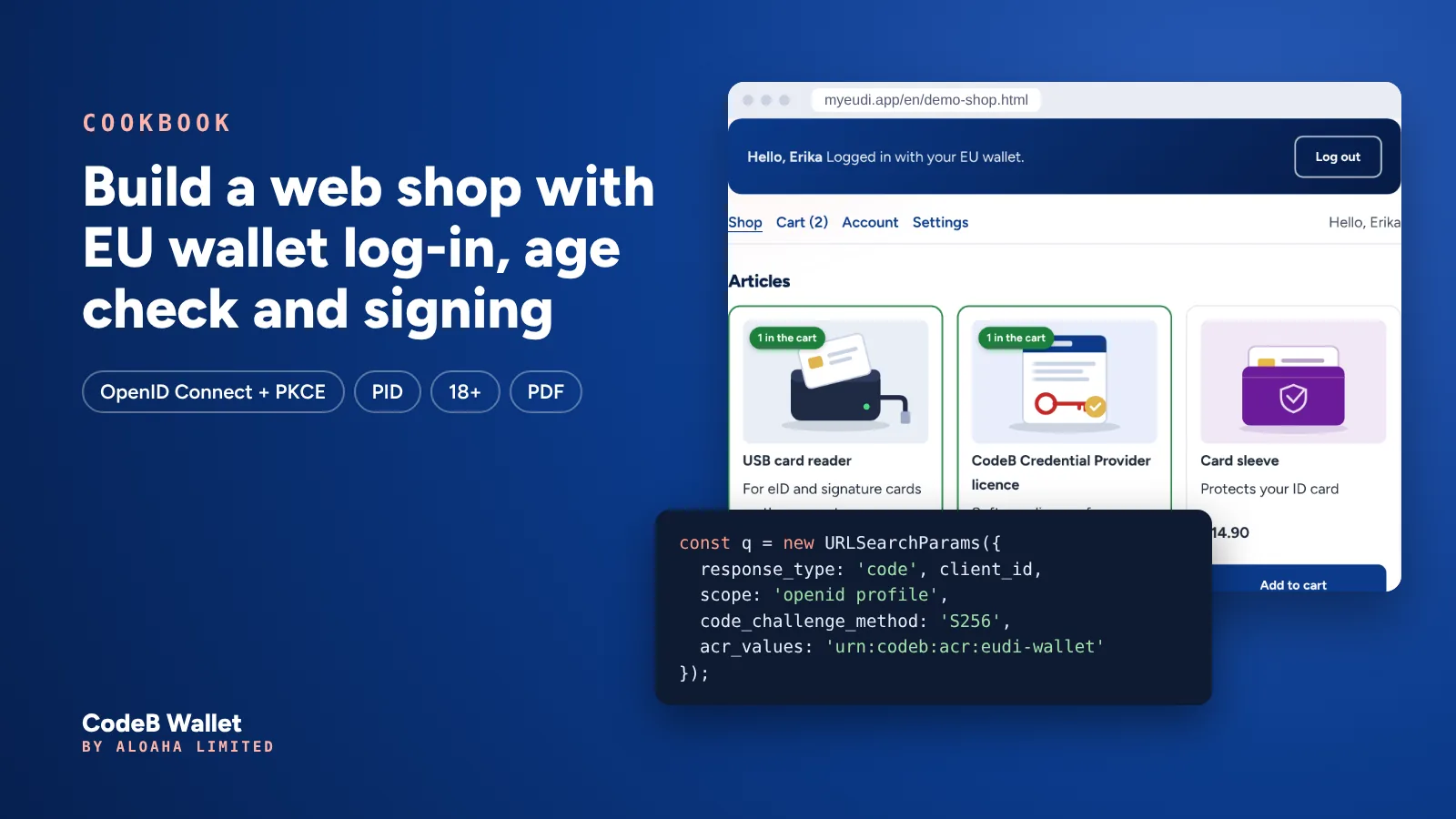
What the demo shop does
Try it first – it takes two minutes: open the demo shop. Nothing is sold, nothing is paid and nothing is stored on a server. The flow:
- Register / log in with the EU wallet – no password, no e-mail confirmation.
- The shop receives only the name from the PID – not the birth date, the address or the ID number.
- An 18+ article needs an age check: the wallet answers only “over 18: yes” (simulated in the demo).
- After the order the customer signs the order confirmation in CodeB Wallet and gets the signed PDF back in the shop.
The ingredients
The shop never talks to a wallet directly. It speaks plain OpenID Connect to the gateway – the protocol that “Log in with …” buttons use everywhere – and the gateway does the wallet part (OpenID4VP, checks of the issuer and the wallet). That is why a shop needs no wallet library at all.
| Part | What it does | Where it runs |
|---|---|---|
| Shop page | HTML, CSS and about 400 lines of plain JavaScript – no framework | Any web server (here: myeudi.app) |
| CodeB EUDI Gateway | OpenID Connect provider in front of the EU wallets: asks the wallet, checks the answer, issues the tokens | phone.codeb.io |
| CodeB Wallet | Holds the PID, shares only what you agree to, signs PDFs | Android app; for log-in also the web wallet in the browser |
| Signing requests | Hands a PDF to the wallet and receives the signed PDF | phone.codeb.io |
Step 1 – get an OpenID Connect client
The shop is a public client: a web page cannot keep a secret, so it uses PKCE instead of a client secret. For the client we need from you:
Client ID (e.g. my-shop), the redirect URI(s) – the page the customer returns to after the wallet step – and the browser origins (e.g. https://shop.example) that may call the token, userinfo and signing endpoints from JavaScript (CORS).
The configuration the shop then uses:
// Settings of the demo shop (CodeB EUDI Gateway on phone.codeb.io)
const CFG = {
  clientId:  'my-shop',                                   // your OpenID Connect client
  issuer:    'https://phone.codeb.io',
  authorize: 'https://phone.codeb.io/oauth2/v1/authorize',
  token:     'https://phone.codeb.io/oidc.ashx?action=token',
  userinfo:  'https://phone.codeb.io/oidc.ashx?action=userinfo',
  acr:       'urn:codeb:acr:eudi-wallet'                  // "signed in with an EU wallet"
};
Want a client for your shop or a test system? Write to us – see For organisations.
Step 2 – “Log in with my EU wallet”
A click on the button builds a normal OpenID Connect authorization request with PKCE and sends the browser to the gateway. There the customer scans a QR code with CodeB Wallet, taps Open CodeB Wallet on the phone, or uses the web wallet. acr_values asks for a sign-in with an EU wallet.
function b64url(bytes) {
  return btoa(String.fromCharCode(...bytes)).replace(/\+/g, '-').replace(/\//g, '_').replace(/=+$/, '');
}
const rnd = n => b64url(crypto.getRandomValues(new Uint8Array(n)));

async function loginWithWallet() {
  const verifier = rnd(32), state = rnd(16), nonce = rnd(16);
  const hash = await crypto.subtle.digest('SHA-256', new TextEncoder().encode(verifier));
  sessionStorage.setItem('oidc', JSON.stringify({ verifier, state, nonce }));
  const q = new URLSearchParams({
    response_type: 'code', client_id: CFG.clientId,
    redirect_uri: location.origin + location.pathname,
    scope: 'openid profile', state, nonce,
    code_challenge: b64url(new Uint8Array(hash)), code_challenge_method: 'S256',
    acr_values: CFG.acr, ui_locales: 'en'
  });
  location.assign(CFG.authorize + '?' + q);   // QR code, app button or web wallet: the gateway asks
}
Step 3 – back in the shop: exchange the code and check the id_token
The gateway sends the customer back with ?code=…&state=…. The shop exchanges the code for the tokens and checks the id_token: issuer, audience, nonce – and acr. Check acr yourself: acr_values is a wish, and the shop accepts only a wallet sign-in.
The id_token comes straight from the token endpoint over TLS, so OpenID Connect allows the client to rely on TLS instead of checking the token signature (OpenID Connect Core, 3.1.3.7). A backend that passes id_tokens on should verify the signature with the keys from jwks_uri in https://phone.codeb.io/.well-known/openid-configuration.
function claims(jwt) {   // payload of the id_token (UTF-8 safe)
  const b = atob(jwt.split('.')[1].replace(/-/g, '+').replace(/_/g, '/'));
  return JSON.parse(new TextDecoder().decode(Uint8Array.from(b, ch => ch.charCodeAt(0))));
}

async function finishLogin() {
  const qs = new URLSearchParams(location.search);
  const p = JSON.parse(sessionStorage.getItem('oidc') || 'null');
  sessionStorage.removeItem('oidc');
  if (qs.get('error')) throw new Error(qs.get('error') + ' ' + (qs.get('error_description') || ''));
  if (!p || qs.get('state') !== p.state) throw new Error('state does not match');

  // Form-encoded POST without other headers = a CORS "simple" request (no preflight).
  const r = await fetch(CFG.token, {
    method: 'POST', credentials: 'omit',
    headers: { 'Content-Type': 'application/x-www-form-urlencoded' },
    body: new URLSearchParams({
      grant_type: 'authorization_code', code: qs.get('code'), client_id: CFG.clientId,
      redirect_uri: location.origin + location.pathname, code_verifier: p.verifier
    })
  });
  if (!r.ok) throw new Error('token: HTTP ' + r.status + ' ' + await r.text());
  const t = await r.json();
  const c = claims(t.id_token);
  const audOk = c.aud === CFG.clientId || (Array.isArray(c.aud) && c.aud.includes(CFG.clientId));
  if (c.iss !== CFG.issuer || !audOk || c.nonce !== p.nonce) throw new Error('id_token');
  if (c.acr !== CFG.acr) throw new Error('not signed in with an EU wallet');
  return t;   // access_token, id_token, expires_in
}
Step 4 – only the name from the PID
The shop needs a name for the delivery – nothing more. userinfo returns given and family name; the wallet showed the customer exactly that before sharing. Birth date, address and ID number never reach the shop. The delivery address is typed by the customer, as in any shop.
// No Authorization header: the token goes in the form body, so the browser sends no preflight.
const u = await fetch(CFG.userinfo, {
  method: 'POST', credentials: 'omit',
  headers: { 'Content-Type': 'application/x-www-form-urlencoded' },
  body: 'access_token=' + encodeURIComponent(t.access_token)
}).then(r => r.json());
console.log(u.given_name, u.family_name);   // the shop asked for nothing else
Step 5 – the age check
For an 18+ article the shop asks one question: over 18? The wallet answers yes or no – no birth date, no name. In the demo shop this step is simulated, so you can see what the customer sees and what the shop receives. A real over-18 check with your own wallet: playground and age verification.
Step 6 – sign the order confirmation in the wallet
The shop creates the order confirmation as a PDF in the browser and hands it to the gateway as a signing request. The answer contains an eudi-rqes:// link: on a computer the shop shows it as a QR code, on the phone as a button. CodeB Wallet downloads the PDF, shows who asks, signs – with the CodeB signing service or with the customer’s signature card – and returns the signed PDF. The shop polls the status and offers the signed PDF for download.
The access token from the log-in authorises the request, so only logged-in customers can create one. status_token lets the page ask for the status without the access token.
const SIGN = 'https://phone.codeb.io/sign-request.ashx';

async function requestSignature(pdf, accessToken) {          // pdf: a Blob
  const fd = new FormData();                                 // multipart: also a "simple" request
  fd.append('access_token', accessToken);
  fd.append('client_id', CFG.clientId);
  fd.append('level', 'advanced');                            // 'qualified' = signature card only
  fd.append('label', 'Order confirmation 4711');
  fd.append('return_uri', location.href);                    // "Back to the website" in the app
  fd.append('file', pdf, 'order-4711.pdf');
  const r = await fetch(SIGN + '?action=create', { method: 'POST', credentials: 'omit', body: fd });
  if (!r.ok) throw new Error('sign-create: HTTP ' + r.status + ' ' + await r.text());
  return r.json();   // { id, link: 'eudi-rqes://…', status_token, expires_in }
}

async function waitForSignedPdf(j) {
  const q = 'id=' + encodeURIComponent(j.id) + '&t=' + encodeURIComponent(j.status_token);
  for (;;) {
    await new Promise(ok => setTimeout(ok, 3000));
    const s = await fetch(SIGN + '?action=status&' + q, { credentials: 'omit', cache: 'no-store' }).then(r => r.json());
    if (s.status === 'signed') return fetch(SIGN + '?action=signed&' + q, { credentials: 'omit' }).then(r => r.blob());
    if (['declined', 'expired', 'withdrawn'].includes(s.status)) throw new Error(s.status);
  }
}<!-- computer: QR code for the QR scanner in CodeB Wallet; phone: the same link as a button -->
<div id="qr"></div>
<a class="btn" id="open-app">Open CodeB Wallet</a>
<script src="qrcode.js"></script> <!-- any QR encoder; the demo uses a local copy of an MIT-licensed one -->
<script>
const q = qrcode(0, 'M'); q.addData(j.link); q.make();
document.getElementById('qr').innerHTML = q.createSvgTag({ cellSize: 4, margin: 4, scalable: true });
document.getElementById('open-app').href = j.link; // eudi-rqes://?client_id=…&request_uri=…
</script>Step 7 – a place for the signature
A signature looks best in a box that belongs to it. The order confirmation therefore carries an empty signature field – standard PDF, which every PDF viewer shows. A signing request can name the field, and CodeB Wallet signs into it, with the customer’s choice of picture: the photo from the ID document, a handwritten signature or the name. More: signature fields.
% An empty signature field (ISO 32000-1, 12.7.4.5): a /Sig widget with a box, no value yet
6 0 obj
<< /Type /Annot /Subtype /Widget /FT /Sig /T (Customer_Signature)
   /Rect [60 180 300 260] /P 3 0 R /F 4 >>
endobj
% the catalog lists the field ...
1 0 obj << /Type /Catalog /Pages 2 0 R /AcroForm << /Fields [6 0 R] >> >> endobj
% ... and the page lists the widget
3 0 obj << /Type /Page /Parent 2 0 R /MediaBox [0 0 595 842]
           /Contents 4 0 R /Resources << ... >> /Annots [6 0 R] >> endobj
Step 8 – security headers and CORS
The demo shop runs with a strict Content Security Policy: scripts only from its own site, network calls only to itself and phone.codeb.io.
Browser calls to phone.codeb.io are kept to CORS “simple” requests: form-encoded or multipart POSTs and GETs, no Authorization header, no credentials. That avoids preflight requests and cookies altogether.
Content-Security-Policy: default-src 'none'; script-src 'self'; style-src 'self';
  img-src 'self'; connect-src 'self' https://phone.codeb.io;
  base-uri 'self'; form-action 'none'; frame-ancestors 'none'
What we learned on the way
- Show the reason when something fails. The demo prints a technical line such as
token: HTTP 400 invalid_grant. Our first real test failed – the line pointed at the cause within seconds. - Never send the access token in an Authorization header from the browser unless the server answers preflight requests: the browser blocks the call and only says “failed to fetch”.
- Check acr in the id_token. Otherwise any other sign-in method of the gateway would also open the shop.
- Keep state in sessionStorage, not localStorage. On the phone the customer leaves the page for the app and comes back via the return link – page memory is gone by then, sessionStorage is not, and it ends with the tab.
- PDF text needs care: the built-in PDF fonts know Latin-1 only – Maltese ħ, ġ, ż and ċ need a mapping or an embedded font.
From demo to production
- Do the token exchange on your server (confidential client) and keep tokens out of the browser.
- Verify id_token signatures with the gateway’s keys (
jwks_uri). - Store the signed PDF with the order – it is your evidence that the customer agreed.
- Use
level=qualifiedwhere a qualified electronic signature is required (signature card),advancedotherwise. - Ask only for the data you need – the wallet shows the customer every item before sharing.