
Signing requests · Signature boxes · PAdES
Ask others to sign a PDF – right from your phone
A signing request asks one or more people to sign the same PDF, one after the other. In CodeB Wallet you create it on your phone: share a PDF to the app, place a signature box for every signer, pick the signers from your contacts and send. Each person signs in their own CodeB Wallet – advanced (AdES) with the CodeB signing service, or qualified (QES) with a signature card whose certificate states it – and you follow every step until the signed PDF is ready.
- Share a PDF, add signers, send
- One signature box per signer
- AdES, or QES with your card
What a signing request is
You choose the PDFs (up to 10), the signature level and the people who sign, in order. CodeB Wallet sends the request through your free CodeB account on phone.codeb.io; every invited person gets an e-mail and signs in their own CodeB Wallet. Earlier signatures stay valid – the PDF collects one PAdES signature with a trusted timestamp per signer.
You can sign first yourself, place a visible signature box for every signer, remind people, invite more and withdraw the request. When everyone has signed, you save the signed PDF and its signature report.
Way 1: share a PDF to CodeB Wallet
- Open the PDF in any app that can share it – Files, Gmail or another mail app, your browser’s downloads – and tap Share.
- Choose CodeB Wallet in the share sheet. If it is not in the first row, swipe or tap More.
- Unlock the wallet with your PIN. The screen Shared PDF shows the file name and two choices.
- Tap Ask others to sign. A new signing request opens with your PDF already attached. (Sign it myself opens the normal signing screen instead.)
Way 2: from the menu
- Tap the three lines at the top left of the home screen, then Settings.
- Tap CodeB account: … (your name). Not signed in yet? Tap Sign in to your CodeB account and sign in first – a free account is enough.
- On the CodeB account screen tap Signing requests, then New signing request.
- Tap Choose PDFs and pick up to 10 PDFs from your phone.
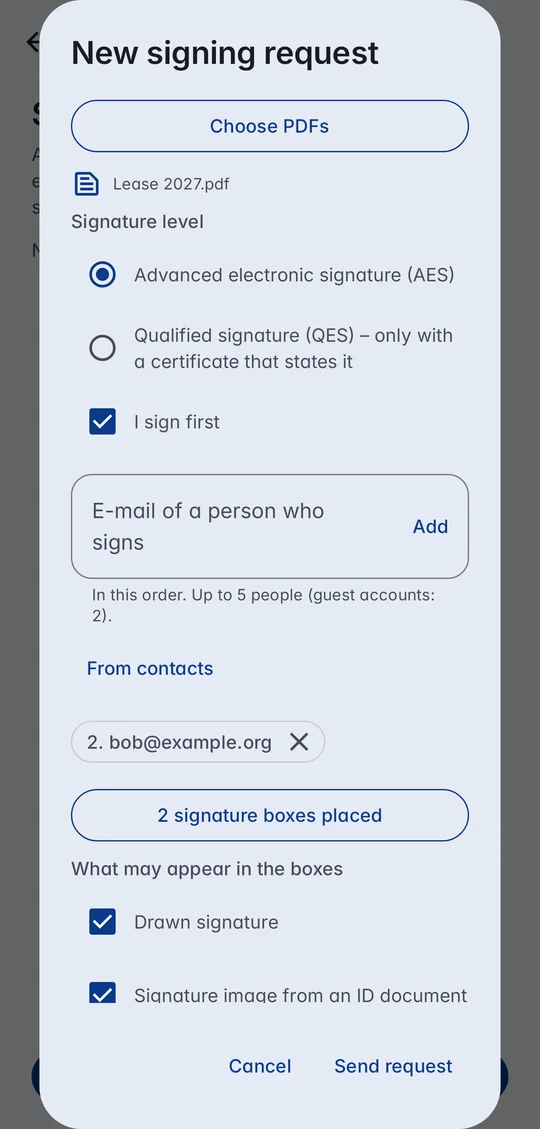
All three ways lead to the same form: choose the signature level, keep or clear I sign first, add signers by e-mail or From contacts, tap Signature boxes (optional) to place a box for each signer, and tap Send request. Your requests are always listed under Settings → CodeB account → Signing requests.
Way 3: from the Sign screen
- On the home screen tap Sign.
- Under Select document tap Ask others to sign. A new signing request opens (not signed in yet? The CodeB account sign-in comes first).
How to ask others to sign a PDF from your phone
- Share a PDF from any app to CodeB Wallet and tap Ask others to sign – or open the menu → Settings → CodeB account → Signing requests → New signing request and tap Choose PDFs. Both ways in detail.
- Choose the signature level: Advanced electronic signature (AES), or Qualified signature (QES) – then only signature cards whose certificate states a qualified signature can sign.
- Keep I sign first if you sign too. Add the people who sign after you – type an e-mail address or tap From contacts.
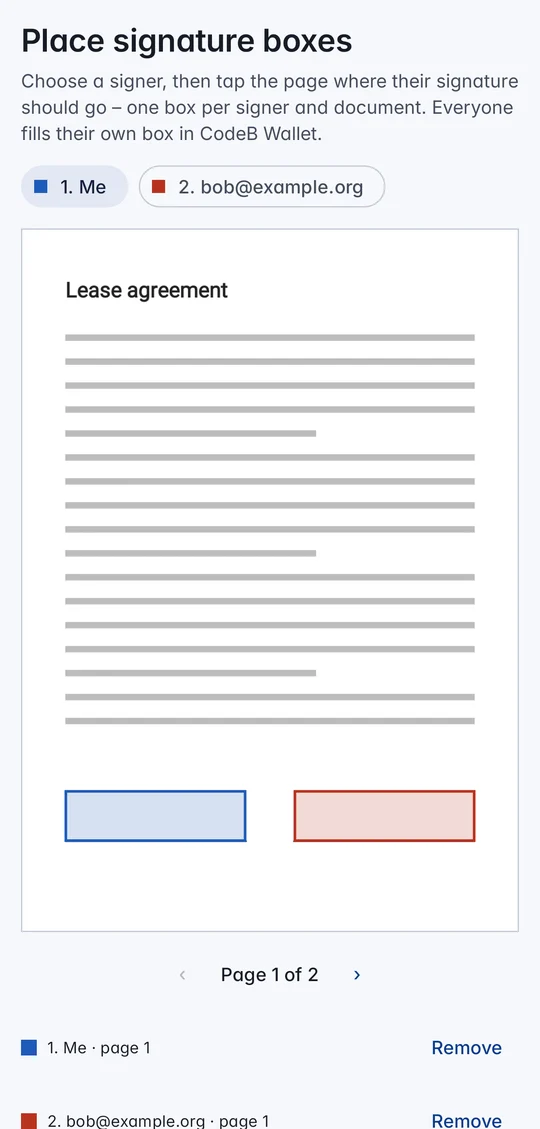
- Optional: tap Signature boxes (optional), choose a signer and tap the page where their signature goes – one box per signer and document. Choose what may appear in the boxes: drawn signature, signature image from an ID document, or name.
- Tap Send request. If you sign first, you sign right away; then each person gets an e-mail in turn and signs in CodeB Wallet.
- Follow the status under Signing requests: remind, Invite more, withdraw – and save the signed PDF and its signature report at the end.
Share a PDF to CodeB Wallet
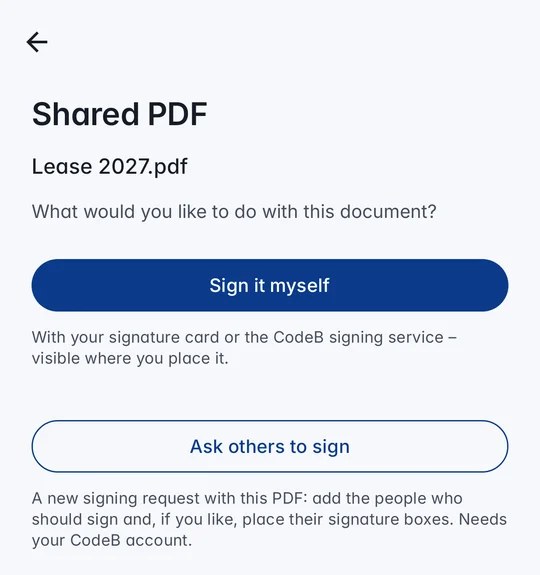
Any app that can share a PDF can hand it to CodeB Wallet. The app asks what you want to do: Sign it myself opens the normal signing screen – with your signature card or the CodeB signing service, with a visible signature where you place it – and Ask others to sign starts a new signing request with that PDF.
CodeB Wallet appears only under Share, never as your PDF viewer. The PDF is copied into the app at once, so it is still there after you unlock the wallet with your PIN.
Several PDFs at once: select up to 10 PDFs in your files app and share them together – they all go into one signing request. A PDF you share while you are writing a request is added to it; the × next to a PDF removes it again.
Place a signature box for every signer
Tap Signature boxes (optional) and choose a signer – each one has a colour. Tap the page where that person’s signature should appear; the box lands there, on any page and on any of your PDFs. Remove takes a box away.
When a signer signs, their box shows their drawn signature, the signature image from their ID document, or their name – next to “Digitally signed by”, the name and the time. You decide which of these may appear. The legal effect comes from the digital signature behind the picture. More: Signature fields.
Signers from your contacts – nothing else
From contacts opens your phone’s own contact picker. You pick one person; only that e-mail address comes back to CodeB Wallet. The app has no permission to read your contacts and never sees your address book.
Up to 5 people can be invited (free guest accounts: 2), in the order you add them.
Follow, remind, invite more
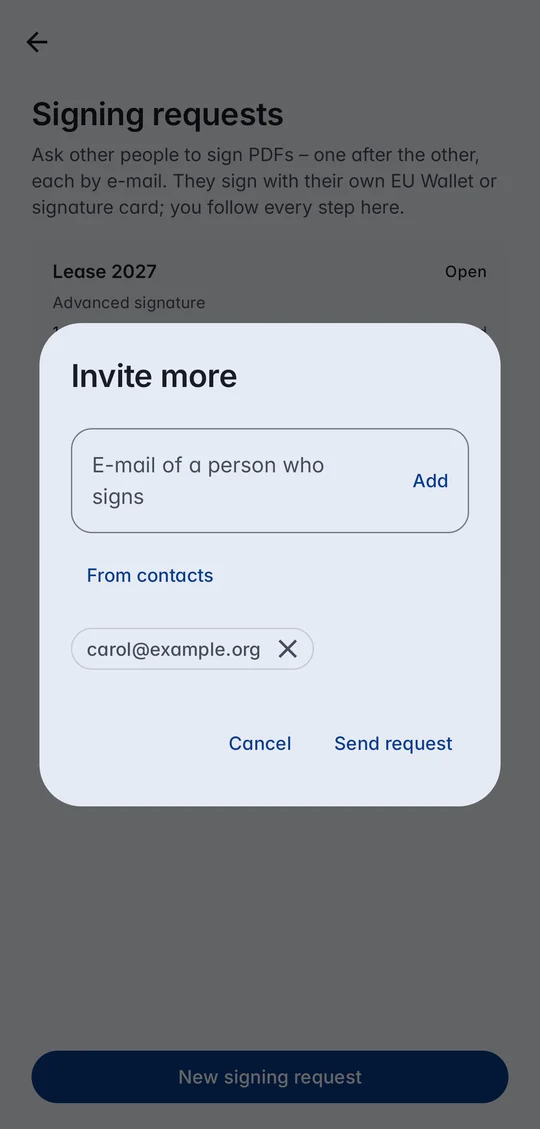
Signing requests lists every request with who has signed and whose turn it is. Send a reminder, withdraw a request that is no longer needed, or tap Invite more to add people to an open request.
When everyone has signed, save the signed PDF to your phone and open its signature report: each signature with signer, time and format, checked on phone.codeb.io.
Advanced or qualified
Advanced (AdES): every signer chooses – their own signature card over NFC, or the CodeB signing service (a server-based remote signature with their free CodeB account). Both create a PAdES signature with a trusted timestamp.
Qualified (QES): only signature cards whose certificate states a qualified electronic signature can sign – for example the Maltese eID, a D-Trust signature card or a German health professional card (HBA). CodeB Wallet itself is not certified.
For developers and websites
The same signing requests can be created by a website or a program through the CodeB API: see the signing request API and signing with CodeB Wallet on phone.codeb.io. AI agents can prepare them after your approval – see AI agents.
From your invoicing program: with Aloaha ZUGFeRD 11.0.0.8 (GUI, PDF Editor or SDK) an e-invoice goes out as a signing request directly – see E-invoices.
Questions about signing requests
Where do I find signing requests in CodeB Wallet?
Two ways: share a PDF from any app to CodeB Wallet and tap Ask others to sign – or open the menu, Settings, CodeB account, Signing requests, New signing request. Step by step.
Can I sign a PDF on my phone?
Yes. Share the PDF to CodeB Wallet and tap Sign it myself, or tap Sign on the home screen. You sign with your own signature card over NFC or with the CodeB signing service; the PDF gets a PAdES signature with a trusted timestamp and stays on your phone.
Can I ask others to sign a PDF from my phone?
Yes. Share the PDF to CodeB Wallet and tap Ask others to sign, add the signers by e-mail or from your contacts, optionally place a signature box for each, and send. Each person signs in their own CodeB Wallet, one after the other.
Is it a qualified signature?
It depends on the signer’s certificate. With a signature card whose certificate states a qualified electronic signature – such as the Maltese eID, a D-Trust card or the HBA – the signature is qualified (QES). The CodeB signing service creates advanced electronic signatures (AdES). CodeB Wallet itself is not certified.
Does the app read my contacts?
No. From contacts opens your phone’s contact picker; only the one e-mail address you pick comes back to CodeB Wallet. The app has no permission to read your contacts.
What do I need to create a signing request?
CodeB Wallet on Android and a free CodeB account, which you open in the app with your passport or ID card in about two minutes. The people you invite need CodeB Wallet to sign.
Can I add someone after sending?
Yes. Open the request under Signing requests and tap Invite more while it is still open.
Install the closed beta (Google Play) Closed beta: open only to invited testers signed in to Google Play with the e-mail address on our tester list. To join, request beta access.
No app? Use CodeB Wallet in your browser On an iPhone? Use the CodeB web wallet in Safari. It works today, until the CodeB Wallet app is available for iPhone. For keys kept in your phone’s secure hardware and for showing your ID in person, use the app. How the web wallet works